Quick tour
The parts of the screen, a first conversation, and where administrators work.
A five-minute walk through OCI, first as someone using it, then as an administrator.
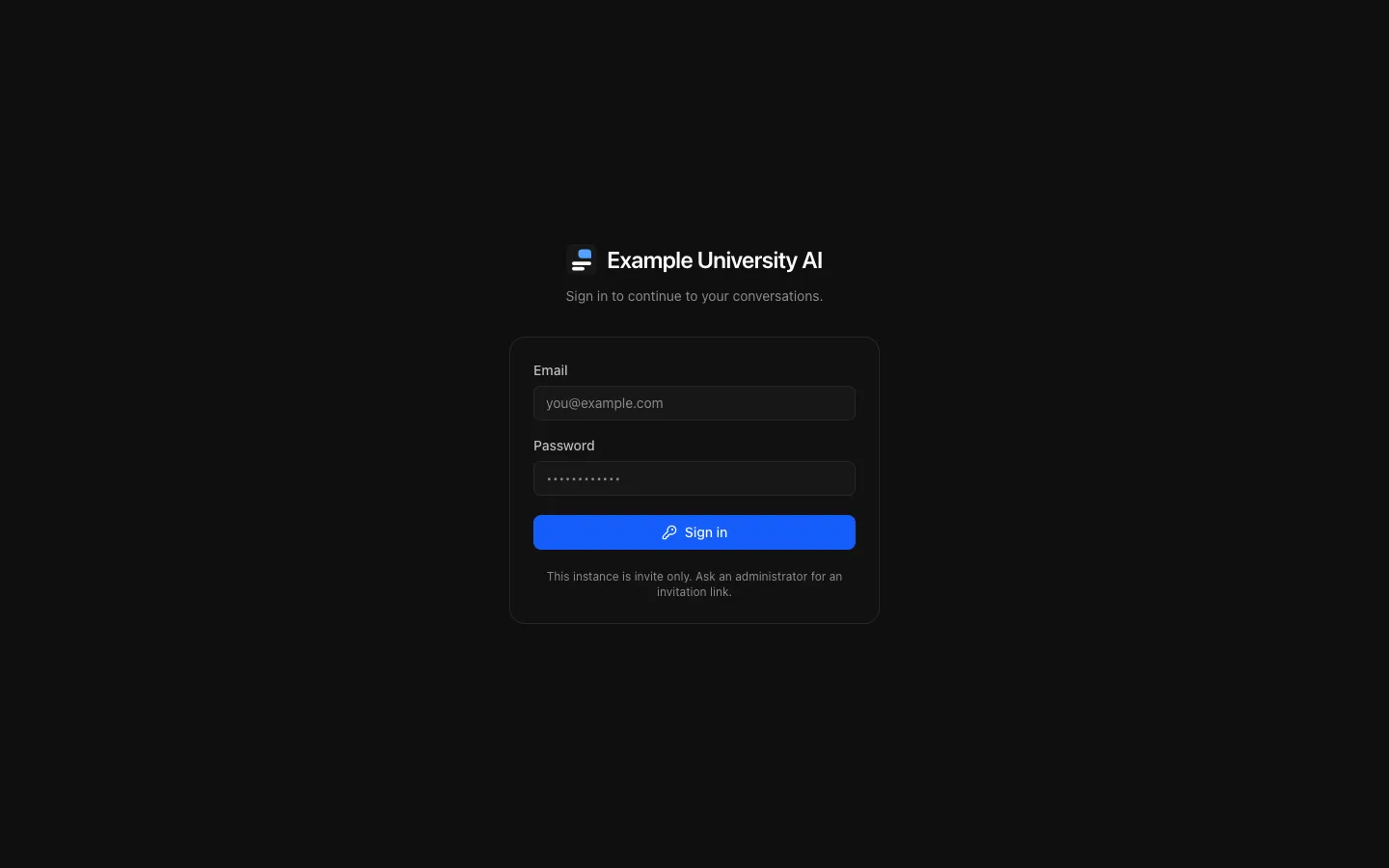
Signing in
You sign in with your institution's identity provider (a button such as "Continue with Example University SSO"), with an email and password, or both, depending on how the instance is set up. If your institution publishes an acceptable use policy, you accept it first.
A new account is greeted by a short introduction: your name, what you do and how you like replies written. It feeds the instructions sent with your messages; Skip for now dismisses it, and everything can be set later in Settings → Customization.
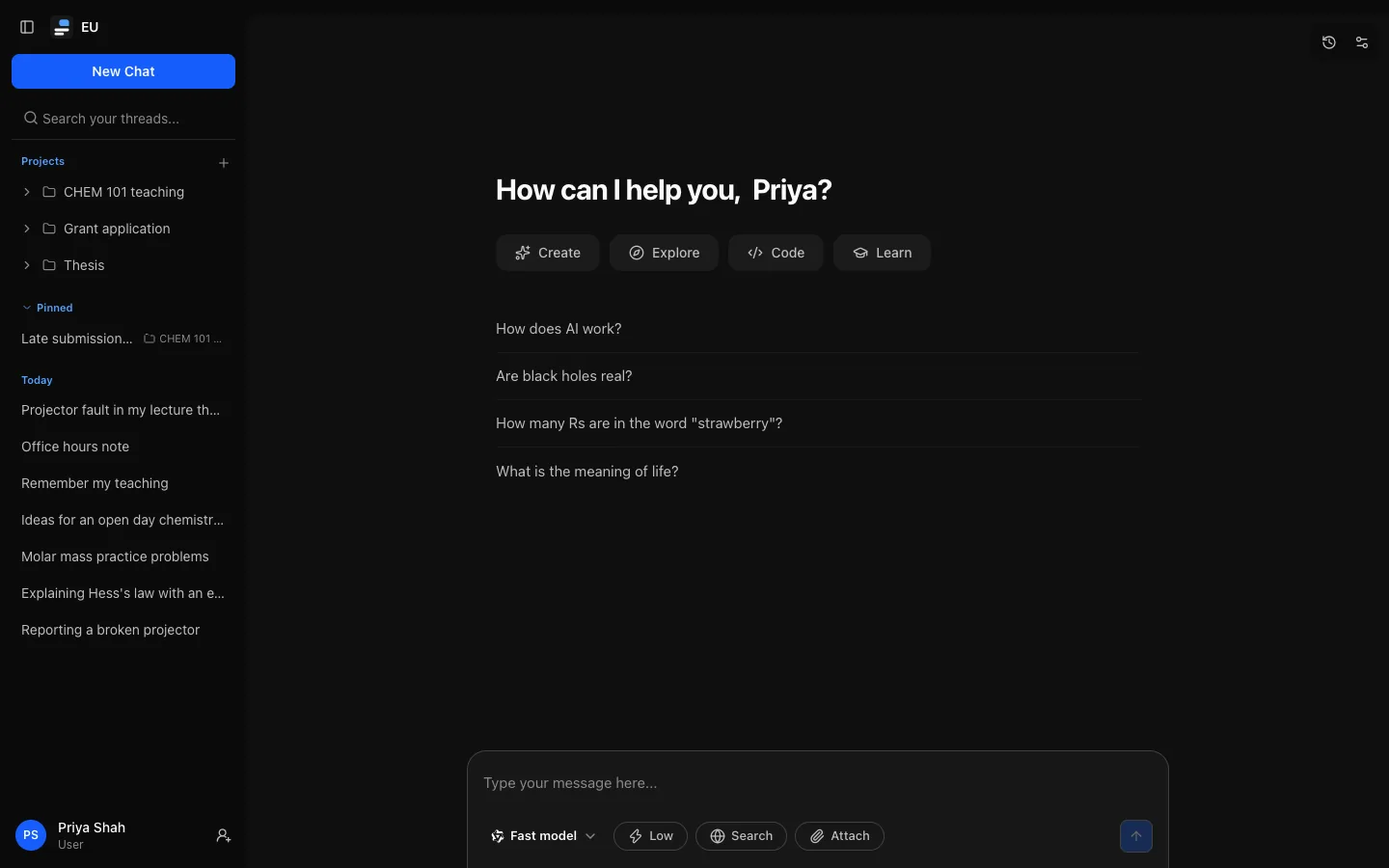
The parts of the screen
- The sidebar, on the left: New Chat, search, your projects, each with its recent conversations, then your other conversations under Pinned, Today, Yesterday and Older. Your name at the bottom opens a menu with Settings, Sign out and, for administrators, Admin dashboard.
- The message box at the bottom: type and press Enter. Along its edge: the model picker, the reasoning level when the model offers one, Search for web search, and Attach.
- The buttons at the top right of a conversation: Rename, download it as Markdown, Share conversation, Move to project, summarise earlier messages, Temporary chat, and the appearance menu.
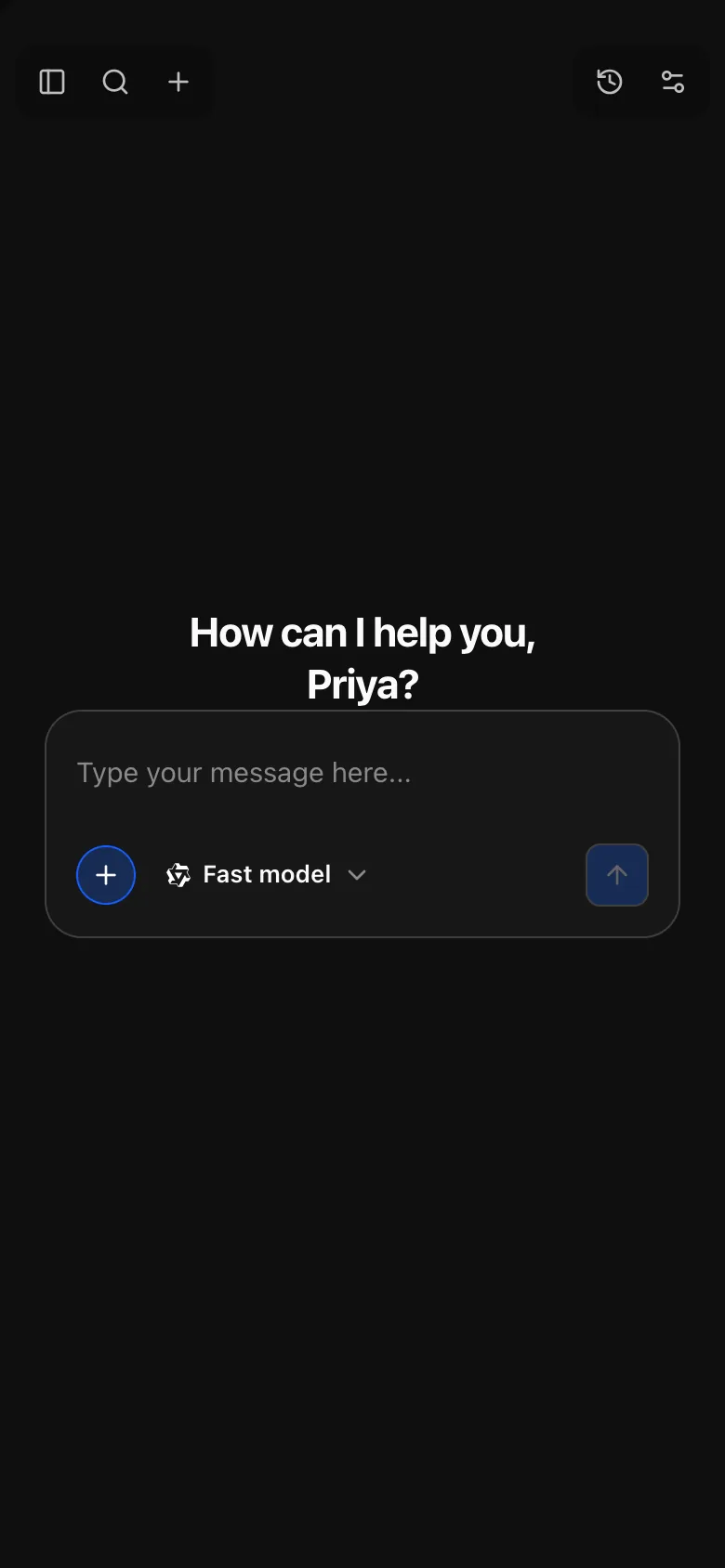
On a phone the sidebar becomes a panel you open from the top left, and the message box's controls collapse behind one button.
A first conversation
Pick a model
Select the model name in the message box. Coloured icons show what each model can do; the funnel filters by ability, and i opens a model's card. See Chatting.
Ask
Type a question and press Enter. The reply streams in; the stop button, where Send was, ends it early. A reasoning model shows Thinking… with its latest lines while it works.
Keep going
Ask a follow-up, switch model mid-conversation, Retry the latest reply, or Fork conversation here to try a different direction without losing what you have. The conversation gets a title on its own and appears in the sidebar.
Make something
Ask for a web page, a diagram or a long document, and it opens as an artifact beside the conversation, where you can preview, copy, download or export it.
Administration
Administrators open Admin dashboard from the menu under their name; administrators and auditors can also reach it, and each admin page, from the command palette (Cmd/Ctrl + K) or at /admin. The dashboard is grouped by task: People, Models, Tools & integrations, Sign-in & security, Data & storage, Insights and Appearance & features, with Overview above them.
Overview opens with a setup checklist: what is still missing before the instance works as intended, in the order things depend on each other, each item linking to the page that resolves it. On a fresh install, start there. See First run.
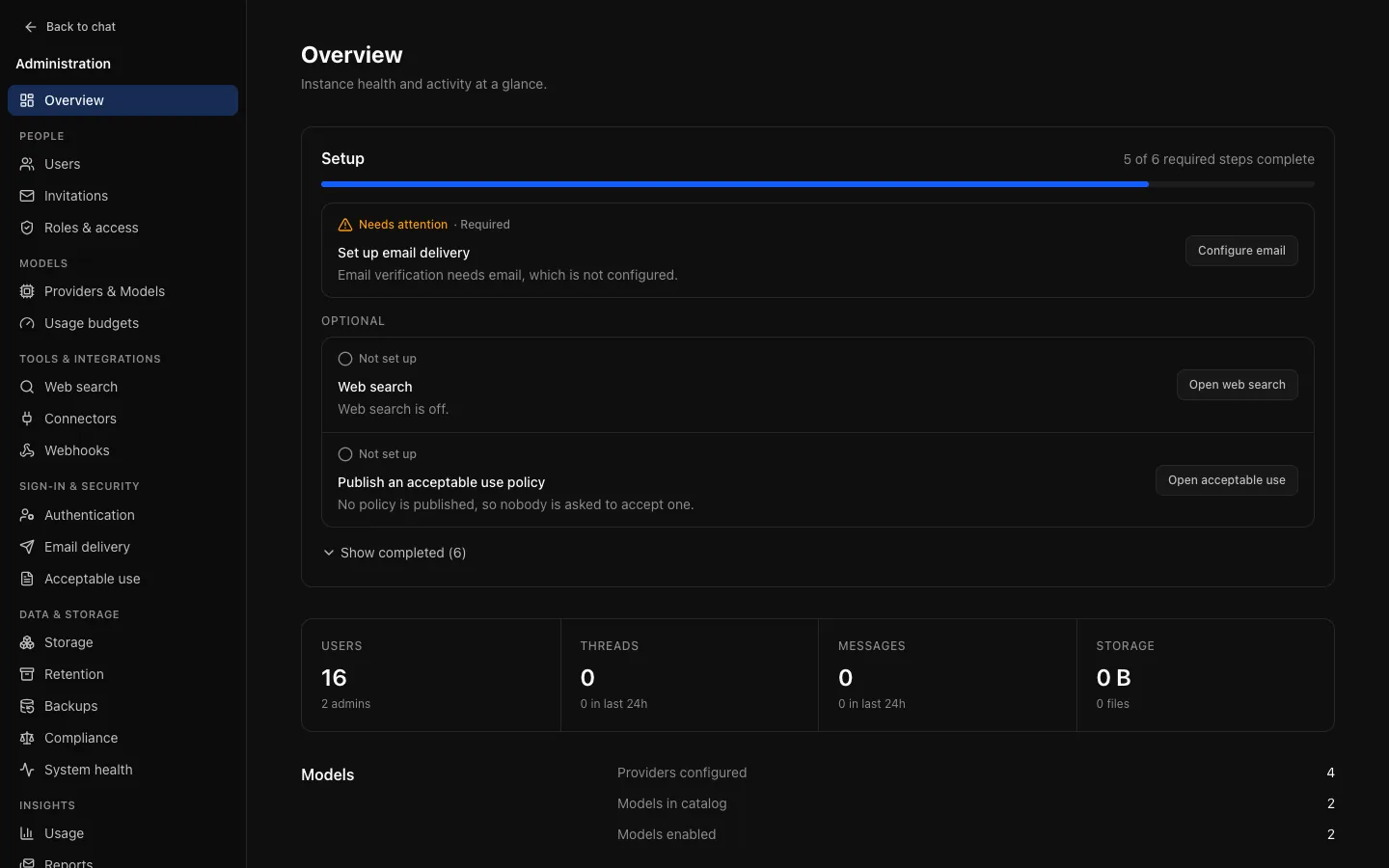
An auditor sees the same pages with a read-only banner, and controls that would change something are hidden or disabled.
Next
- Using OCI: everything people can do.
- Try it locally: run your own copy with Docker Compose.
- Self-hosting: run it for real.