Artifacts
Web pages, images, diagrams and documents from replies, kept as versioned objects you can watch being written, open beside the conversation, take full screen, edit and export.
When a reply contains something you will want on its own, such as a web page, an image, a diagram or a long document, OCI keeps it as an artifact: a separate object with its own versions that you can open, copy, download and export.
What becomes an artifact
- HTML pages: an HTML code block that is a whole page, or at least ten lines long.
- SVG images: any complete SVG.
- Mermaid diagrams of three lines or more. The diagram still appears in the reply, with a card below it.
- Long documents you ask for, such as a report or a plan. Models that can use tools create these as artifacts and can revise them later. Program code stays in the reply as code blocks unless you ask for an artifact.
Artifacts work with every model: a model without tools writes a code block, and OCI saves it once the reply has finished.
Watching one being written
When a model that can use tools writes an artifact, the reply shows its card straight away, below the reply's work block (see How a reply shows the model's work) and above its answer, while the block's heading reads Writing Title…:
- Preparing Title… until the first text arrives. Some providers send the whole artifact at the end; after a few seconds the card says how long it has been waiting.
- Writing Title… with the lines and characters so far and the last few lines. A revision shows Revising Title… (2 changes).
- Once saved, it becomes the ordinary card that opens the artifact.
Select the small arrow at the right edge of a card (Show details for Title to a screen reader) to open the details inside the card: the title, kind and size, each change of a revision as a before-and-after snippet, the latest source while it is being written, and Open artifact (version N) for the version that call made. Selecting the rest of the card still opens the artifact. In the expanded work block the same call is one line, such as Created artifact 'Title'; select it to jump to the card. A call that failed has no card; its line in the work block opens the same details and the error.
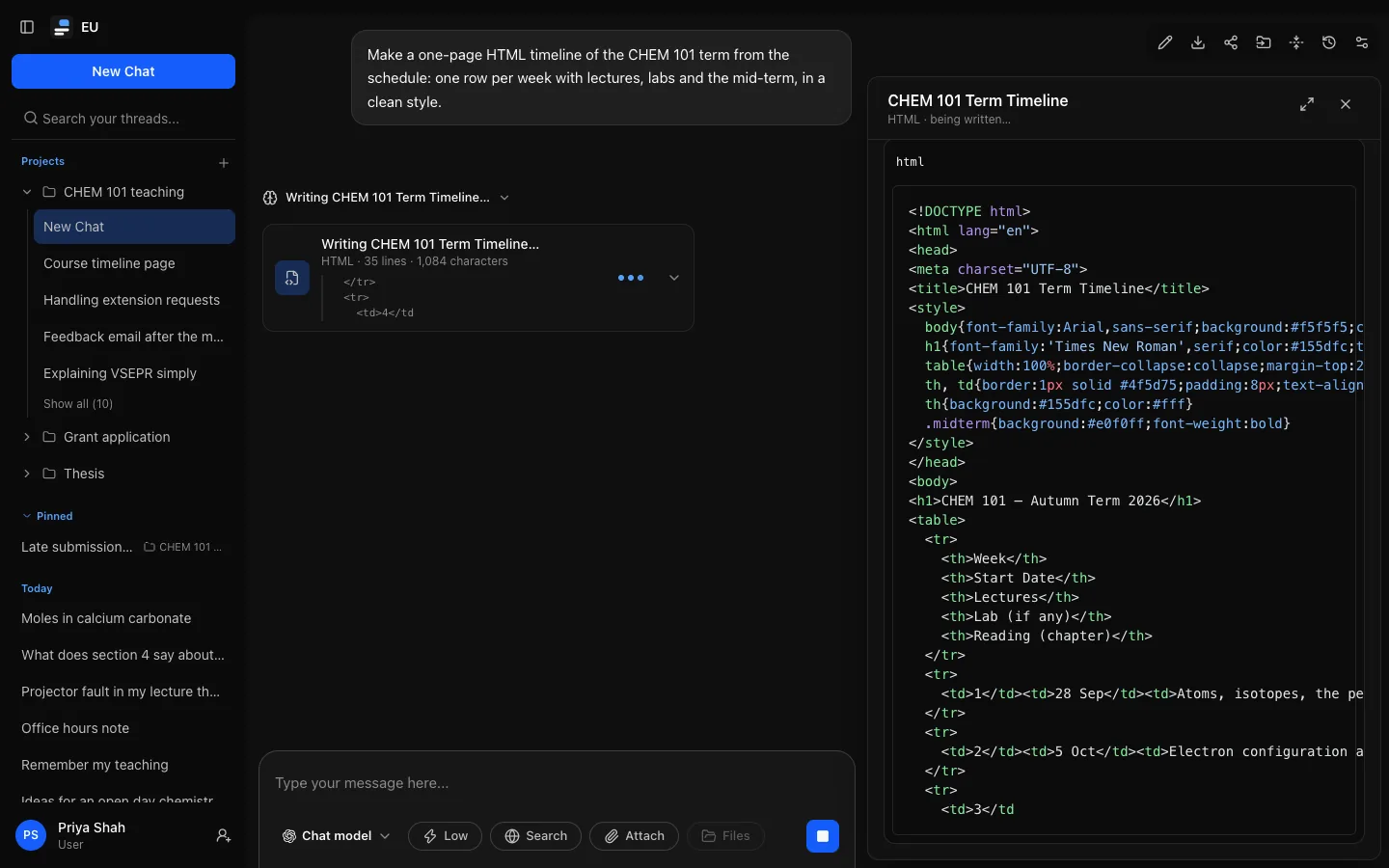
If you reload the page while a reply is still writing an artifact, its card, and the panel when you open it, pick up where the writing is: you see what has been written so far, and the rest as it arrives, however long the artifact is.
On a wide screen (a computer, or a tablet held sideways), the artifact panel opens by itself beside the conversation for the first artifact a reply starts, and shows the source as it arrives. When the artifact is saved, the panel switches to its preview, unless you opened something else meanwhile. It never takes focus: you can keep typing. Screen readers announce "Opened artifact: Title" and when writing starts and finishes.
It does not open by itself on phones and narrow windows (select the card instead), for conversations opened from history or after a reload, again in the same reply after you closed it, or if you turn off Open artifacts automatically in Settings → Customization.
Opening an artifact
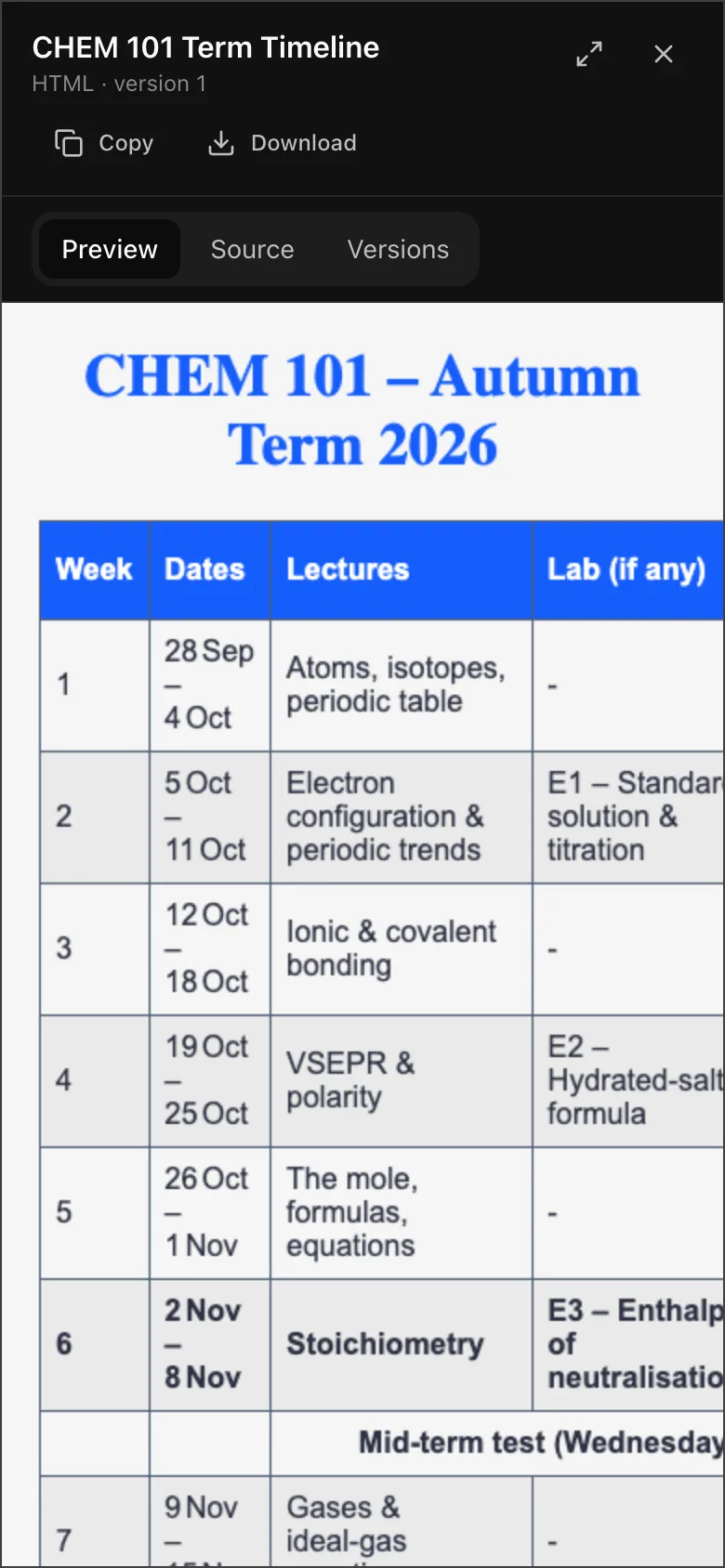
Select an artifact's card. On a wide screen the panel docks beside the conversation, which narrows to make room; the conversation and message box stay usable, and Tab moves between them and the panel. On a phone the panel fills the screen until you close it.
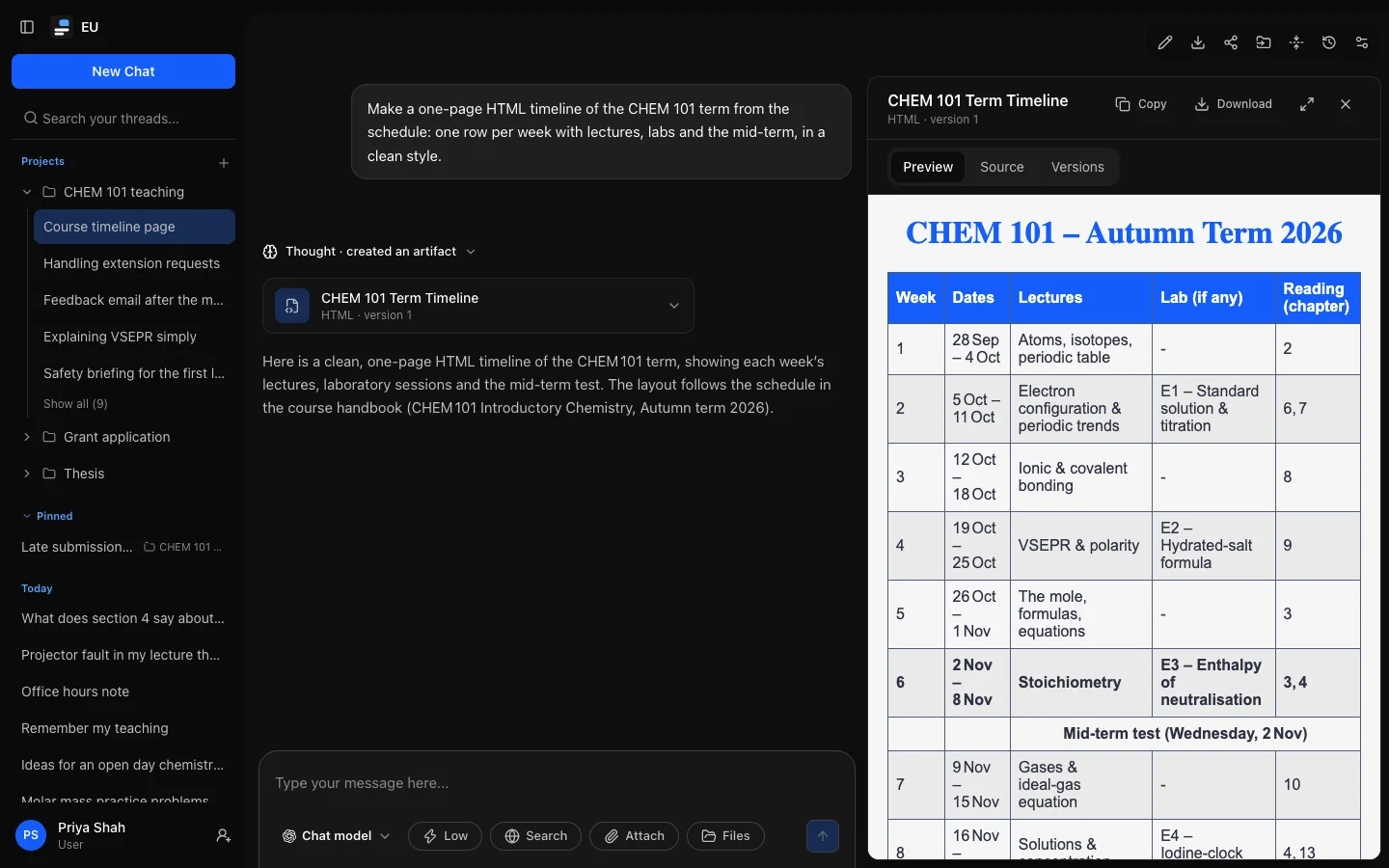
The panel has three views:
- Preview: the page or image itself, the drawn diagram, or the formatted document.
- Source: the text it is made of, highlighted like code in replies.
- Versions: every version, newest first, with who made it and when. Select one to look at it.
Copy puts the version you are looking at on the clipboard; Download saves it as .html, .svg, .mmd or .md. For documents, Export as… saves it as a Word document, PDF, presentation or spreadsheet (Exporting as files). Escape (with focus in the panel) or Close goes back to the conversation. After clicking inside a preview, press Tab to move out of it first: the preview is sealed off from OCI and does not pass on key presses.
Making the panel wider or narrower
On a wide screen, drag the panel's left edge to make it wider or narrower: at least 22rem (about 350 pixels) and at most 70% of the window. With the keyboard, Tab to the edge (Resize artifact panel) and use the left and right arrow keys (with Shift for bigger steps); Home makes it as narrow as it goes and End as wide. Double-click the edge, or press Enter on it, to go back to the usual width.
The width you choose is remembered in this browser for every conversation; in a smaller window the panel never takes more than 70% of it. Full screen and phones are not affected.
Full screen
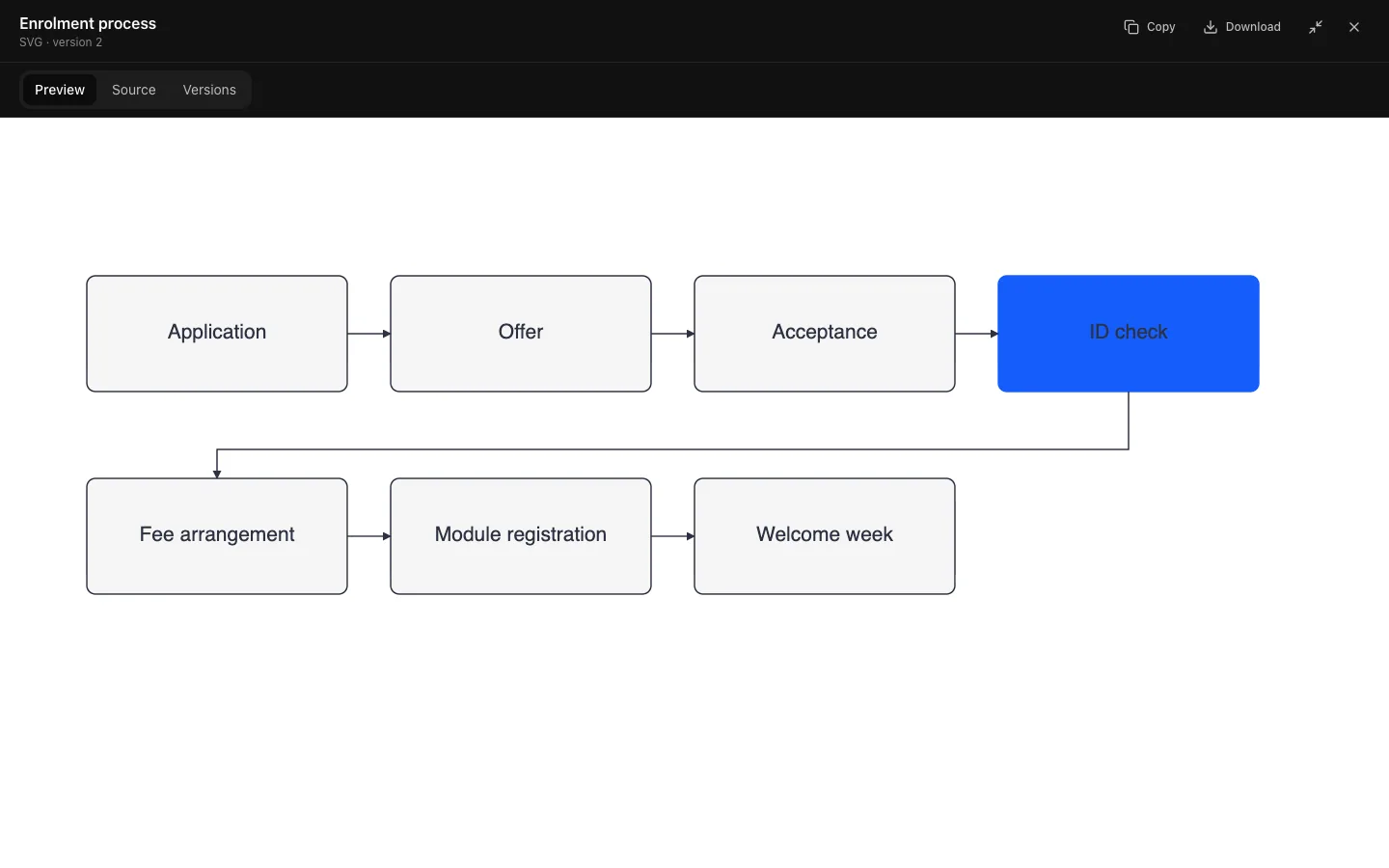
Full screen (the arrows beside Close) gives the artifact the whole window, over the sidebar and top bar. It works beside the conversation, on a phone and on share links. While it is full screen, Tab moves only among the panel's controls and screen readers treat it as a dialog. Exit full screen or Escape goes back to the panel; a second Escape closes it. Full screen is only ever your choice: a panel that opens by itself never starts full screen.
Changing an artifact
Every change makes a new version; earlier ones are kept.
- Documents (Markdown) can be edited directly: open it, select Edit, change the text and select Save as new version (or
Cmd/Ctrl + Enter). If it changed while you were editing, OCI tells you instead of overwriting the newer version. - Pages, images and diagrams are changed by asking the model, for example "make the chart's bars blue". A model that can use tools revises the existing artifact and the reply shows its card marked Updated · HTML · version 3. Other models write a new code block, which becomes a new artifact.
Safety
Pages and SVG images can contain scripts, so OCI runs them in a sealed frame. Inside it a page can draw, animate and respond to clicks, but it cannot see or use your OCI session, cookies or data, cannot connect to the internet or load anything from it, and cannot open windows or take you to another page. Images, fonts and scripts must be included in the artifact itself. For charts, models can ask OCI to include the D3 charting library, which comes from OCI itself.
Sharing, exporting and deleting
- Share links include the artifacts of the shared replies, at the version that was current for them, in the same sealed frame. Viewers can open, copy and download them, but not see other versions.
- Your full export includes every artifact with all its versions in each conversation's JSON file.
- Storage: every version counts towards your storage allowance. Moving the conversation to the trash frees it; restoring needs room again.
- Deleting a conversation deletes its artifacts. Forking or editing copies the artifacts of the copied replies.
Artifacts can be turned off for your role. Code blocks then stay ordinary code blocks, and artifacts you already have stay readable.