Chatting
Choosing a model and a reasoning level, stopping and retrying replies, editing and forking, and what happens in long conversations.
Sending a message
Type in the message box and press Enter. Shift+Enter starts a new line instead. (You can swap these in Settings → Customization.)
The reply streams in as it is written. The stop button, where Send was, ends it early; what was written so far is kept. The conversation gets a title on its own from your first message and appears in the sidebar.
Choosing a model
The model name sits at the bottom left of the message box; select it to open the picker.
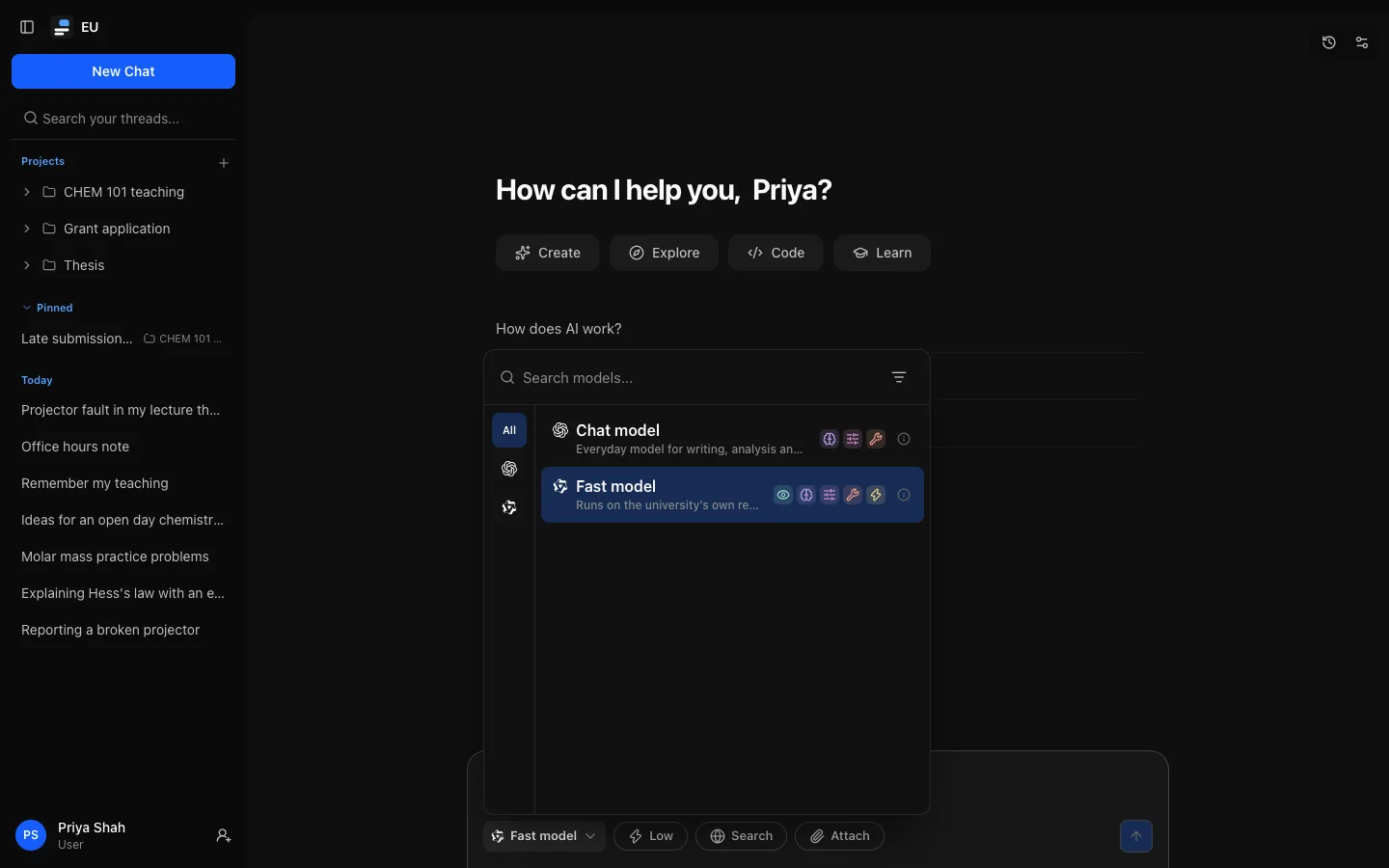
Models differ in what they can do, not only in quality. Coloured icons beside each name show its abilities:
| Ability | Means |
|---|---|
| Vision | Can look at images you attach. |
| Reasoning | Works through a problem before answering. |
| Effort control | You can ask it to think harder or answer faster. |
| Tool calling | Can use tools, such as web search, while it answers. |
| PDF comprehension | Marked as able to read PDFs. |
| Fast | Optimised for a quick reply. |
The funnel beside the search box narrows the list to models with an ability you need. The i beside a model opens its card: description, abilities, provider and limits.
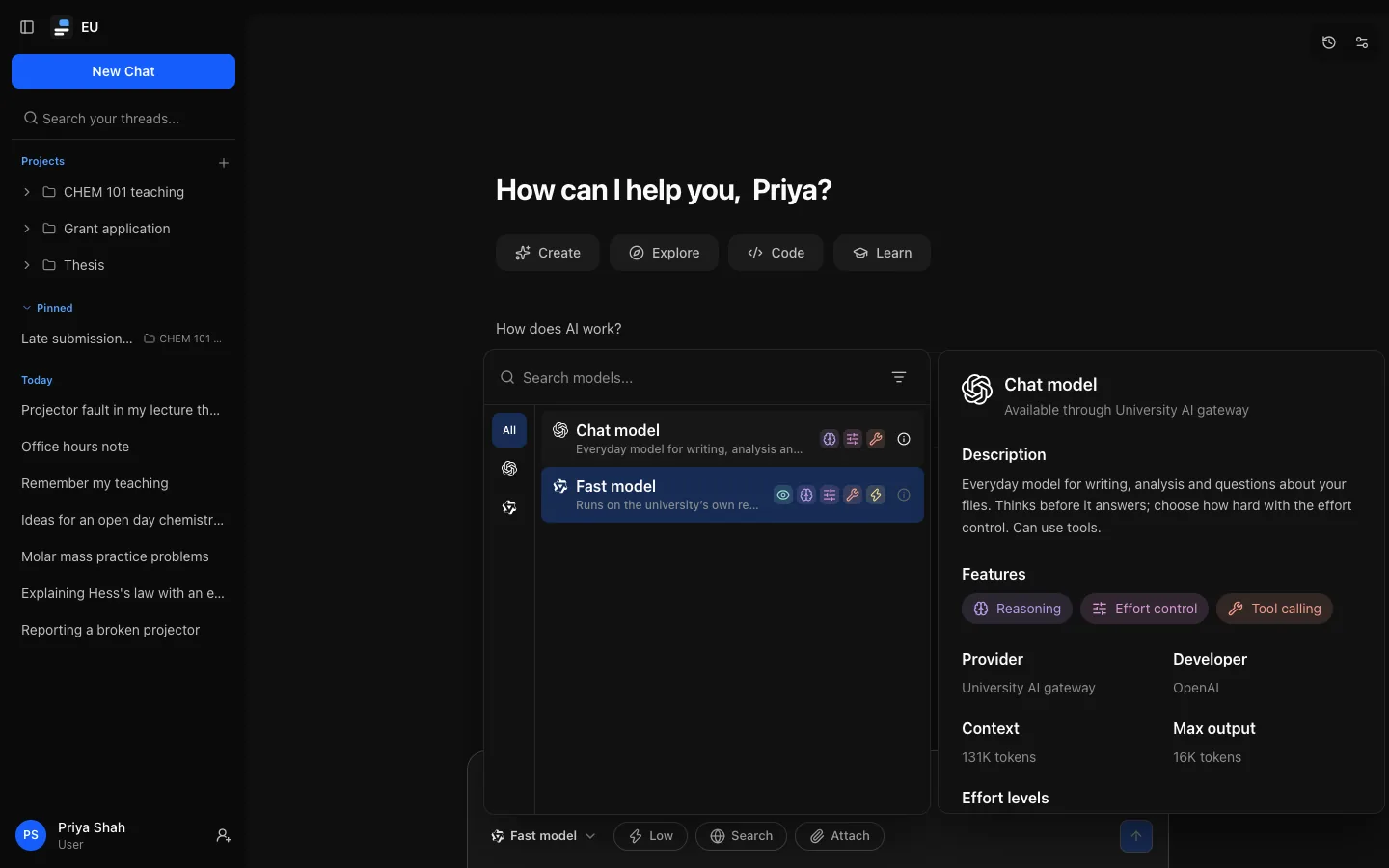
Which models you see is decided by your institution, and may depend on your role. A model you pick applies to that conversation, and reopening it later starts from the model it last used. A new conversation starts from your own default model, if you set one in Settings → Models, or else the instance's default; your default follows you to every device.
Switching model mid-conversation
You can change model at any point. The new model receives the recent conversation that fits what it can take in, including earlier attachments it can read. Starting with a fast, inexpensive model and moving to a more capable one when the question gets hard is a good way to work. Each reply records which model wrote it.
How a reply shows the model's work
Some models think before they answer, and some use tools (a web search, an artifact, a connector). Everything a reply did before its answer is gathered into one collapsed block at the top of the reply, so the answer reads cleanly however many steps it took.
- A reply that only thought once shows a Reasoning heading. Select it to read the thinking in full.
- A reply that took more than one step, or used a tool, shows a one-line summary instead, for example Thought · created an artifact, Thought · searched the web twice, Searched the web, or Worked · 3 steps when it did several different things. Select it to see a timeline of every piece of reasoning and every tool step in the order they happened; each tool step expands to its inputs and result.
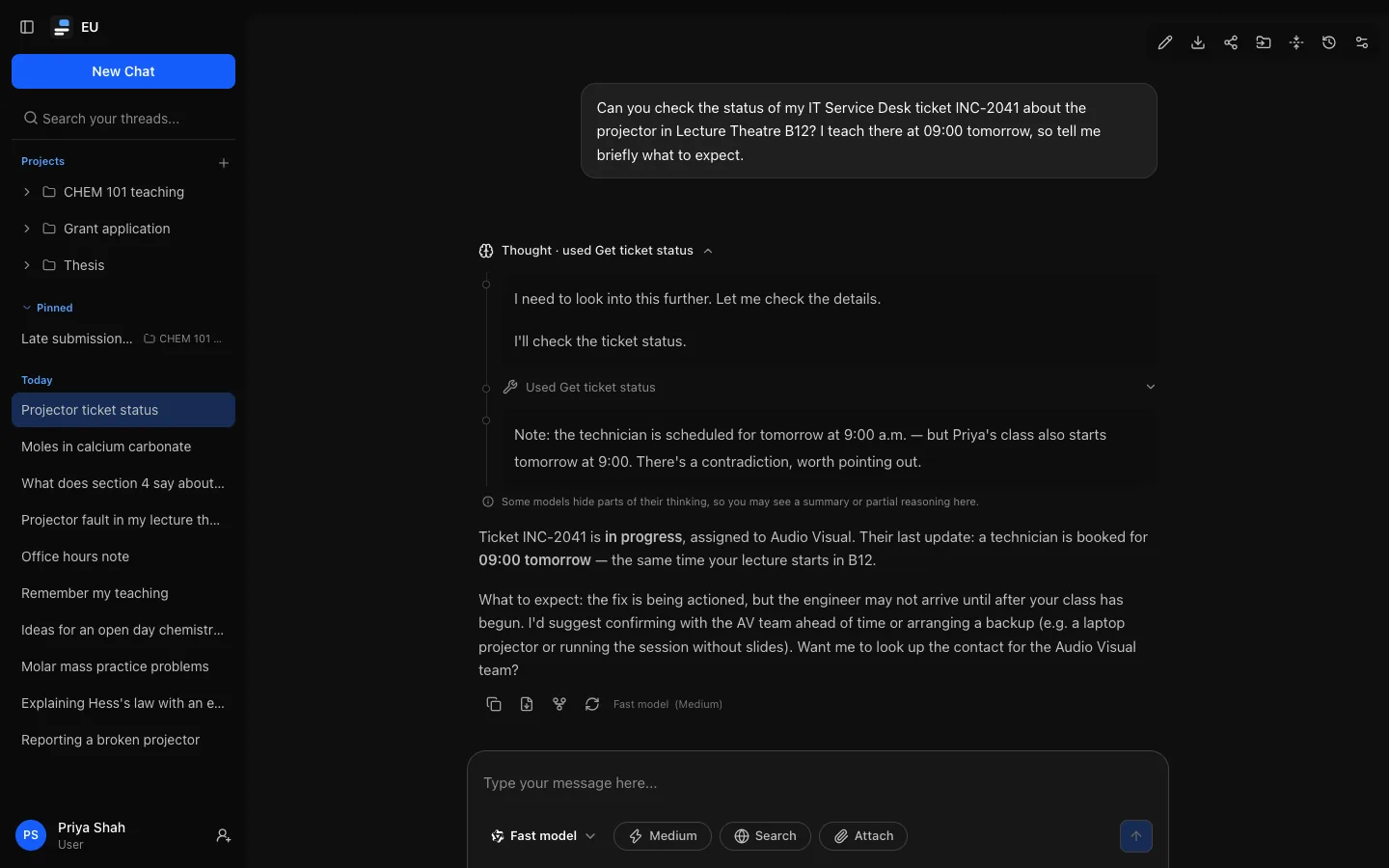
What the work made or needs from you stays in sight below the block and above the answer: artifact cards, tool approvals waiting for an answer, and "Memory updated" notes. Nothing you need to act on is hidden in the collapsed block.
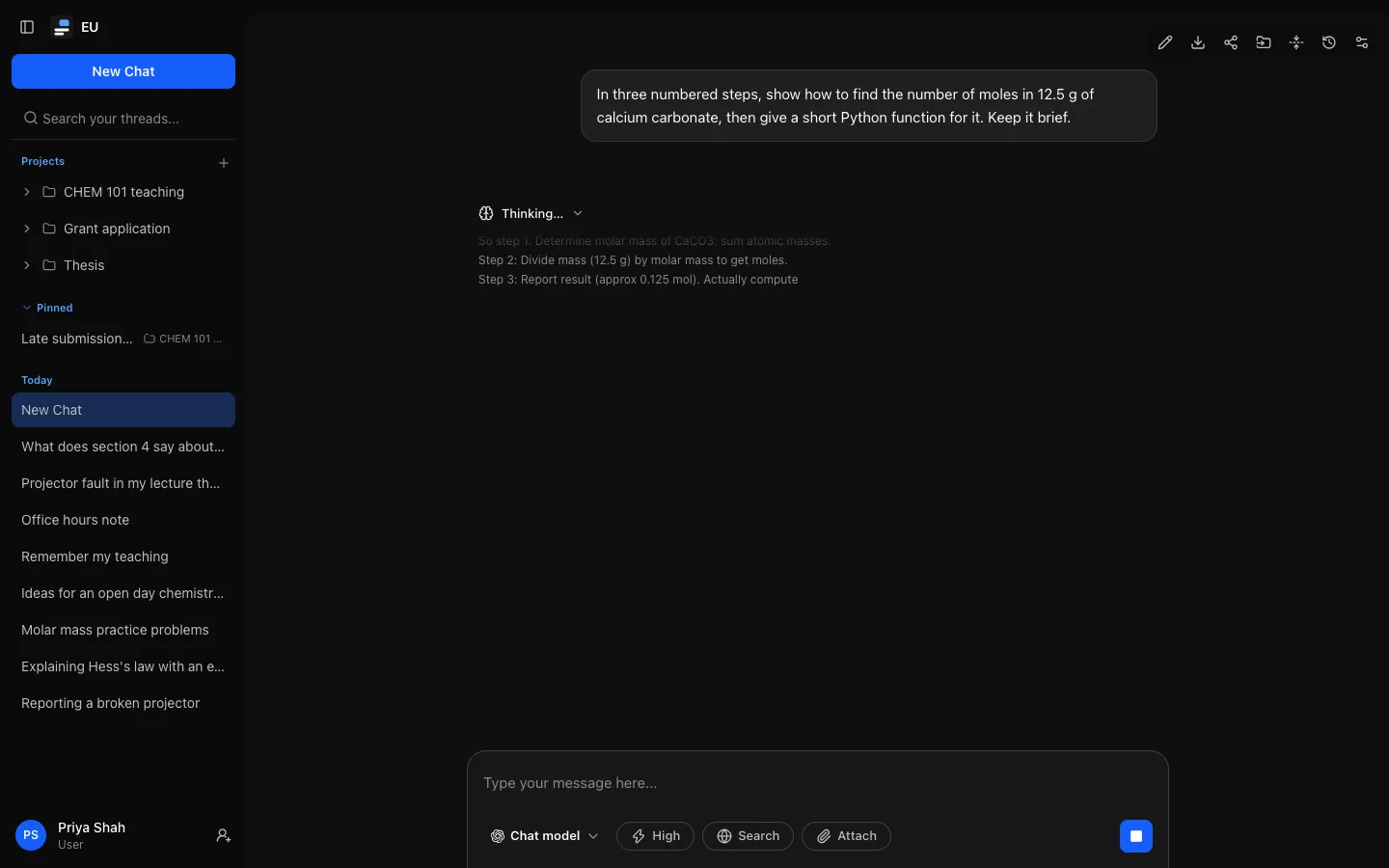
While the model works, the block's heading says what it is doing now: Thinking…, Searching the web…, Writing Title…. While it thinks, a small window under the heading shows the latest few lines as they arrive, so you can follow along without the reply jumping around; select the heading or the window to read everything so far. When the answer starts, the block collapses to its summary. If you opened or collapsed it yourself, it stays the way you left it.
The heading is a button that says whether it is expanded, and the timeline is a list. Screen readers hear each new step as it starts (once, not every word); the moving window is not read out. Animation stops if your system asks for reduced motion.
The same block appears when you reload a conversation, switch between retried replies, and on share links, which show the tool steps' one-line summaries but not the reasoning.
Reasoning level
Models with effort control have a reasoning level beside the model name: Instant, Low, Medium or High. Higher means a slower, more considered answer; Instant answers straight away. A new conversation starts at your own default level, if you set one in Settings → Models, or else the level your administrator chose (Instant unless they changed it). The control lists only the levels both the model and your role allow.
What you can do to a message
Point at a message (on a phone, the buttons are always shown) to see its controls:
| Control | On | Does |
|---|---|---|
| Copy message | Any message | Copies its text. |
| Export as… | A reply | Saves it as a Word document, PDF, presentation or spreadsheet. See Exporting as files. |
| Fork conversation here | Any message | Starts a new conversation with everything up to this point. |
| Edit message | Your messages | Starts a new conversation with your question rewritten, and answers it. |
| Retry | The latest reply | Answers your latest question again and keeps the earlier reply. |
Editing and forking always leave the original conversation untouched, so you end up with both versions in the sidebar. A forked or edited conversation links back to the one it came from. Both need branching, which your institution can turn off for your role.
Retrying and switching replies
Retry answers your latest question again. The earlier reply is kept: under the latest reply, ‹ 2 / 3 › shows which reply you are reading, and Previous reply and Next reply switch between them (screen readers announce "Reply 2 of 3").
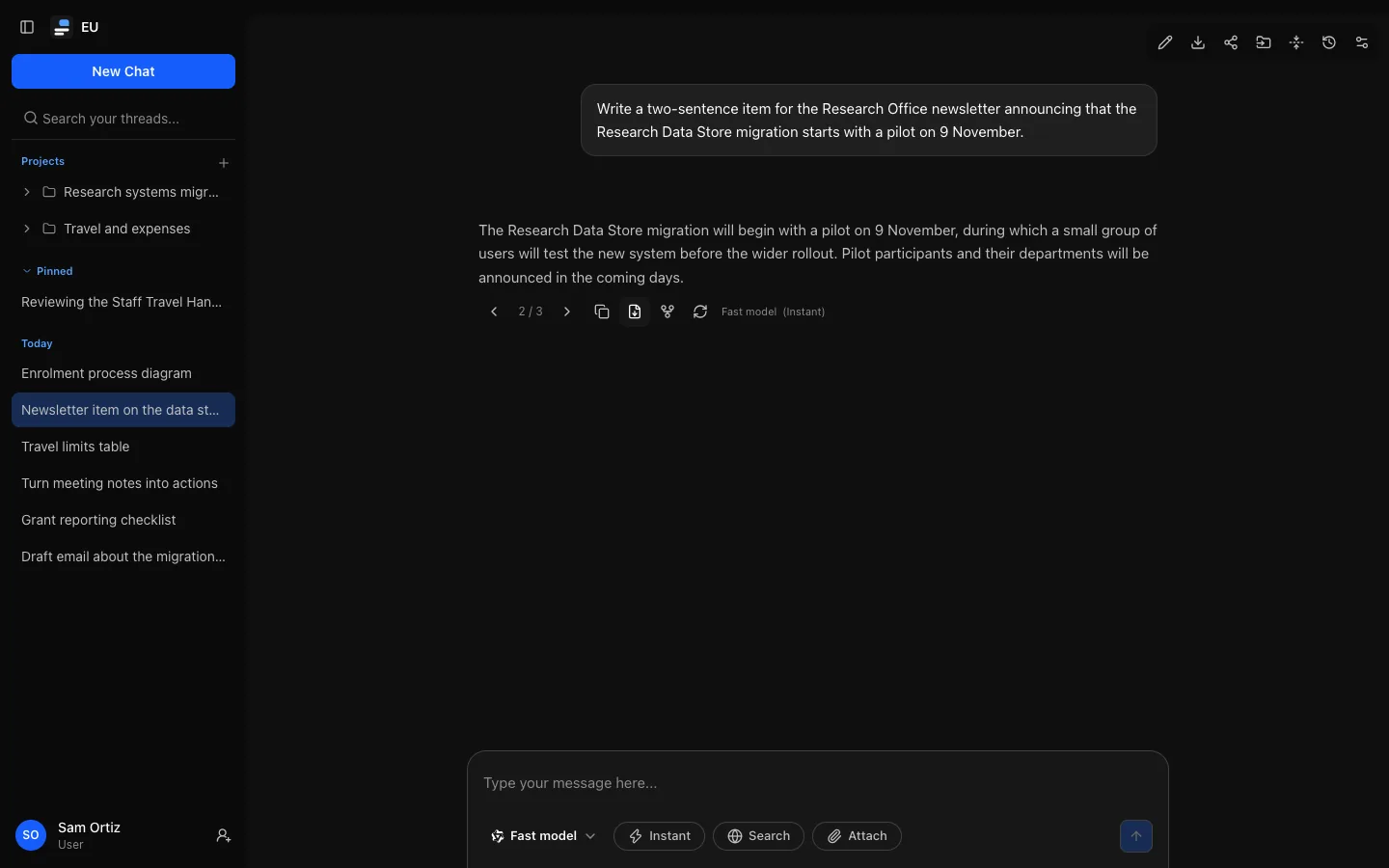
The reply left showing is the one that counts: the model sees it as context for your next question, and exports, share links and search include it. The others stay stored but are left out of all of those. Every reply generated still counts towards your usage.
You can retry and switch only on the latest reply, and not while a reply is being written. To take an earlier question somewhere else, edit it or fork from it.
When a reply is interrupted
A reply keeps being written on the server even if you reload, lose your connection or move to another conversation, and it reconnects when you come back. This works however long the reply is, including a long artifact. If it cannot (the live copy expires), OCI loads what was saved instead; Reload saved messages does the same by hand. A draft you were typing stays in the message box.
Long conversations
When a conversation grows long, OCI summarises its earlier messages in the background and from then on sends the model that summary followed by your most recent exchanges, word for word, instead of dropping the oldest part. A quiet line, Earlier messages are summarised for the model, appears above the first message the model still sees in full; select it to read the summary.
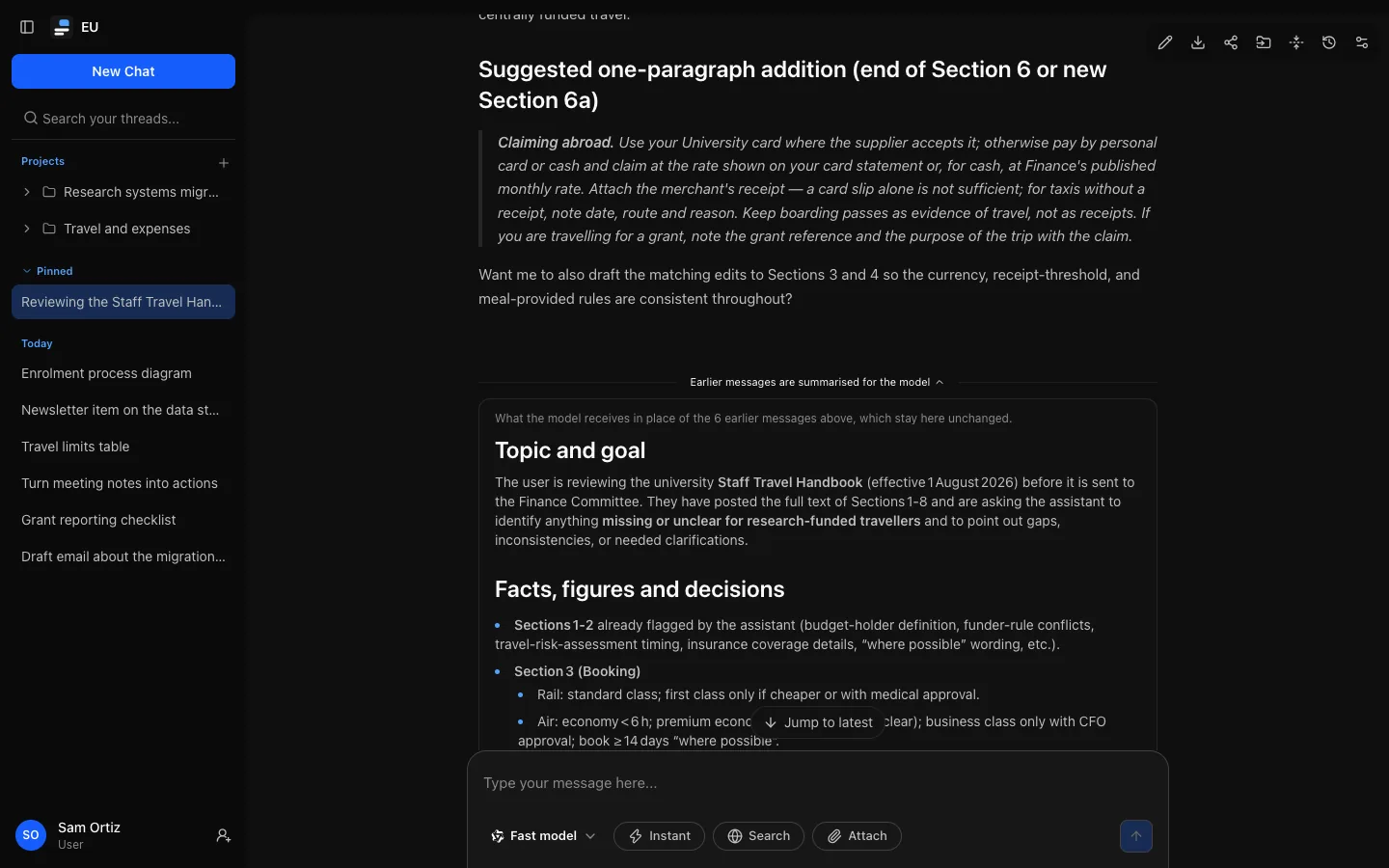
- It never makes you wait. Summaries are made after a reply has finished. You can keep writing, retrying and answering approvals meanwhile.
- Nothing is deleted. Every message stays in the conversation, in search, exports and share links. Only what is sent to the model changes. Your full export includes the summaries.
- What it keeps: the topic and your goal, facts, figures and decisions, your preferences, open questions and next steps, and details to keep exactly, such as names, numbers, code and quotations. Reasoning is left out and long tool results are shortened.
- When it happens: once the conversation fills about three quarters of what the model can take in. The most recent exchanges, up to about half of it, are always kept in full, and a question is never separated from its answer.
- It counts towards your usage, because the conversation's own model writes it. When your allowance is spent, no summary is made until it returns.
- Summarise it yourself: Summarise earlier messages now, at the top right of a conversation, asks for a summary straight away. You can say what it should keep ("keep every figure in the budget"). The dialog closes at once and you can keep writing.
- If a summary you asked for fails, a quiet note under the conversation says The summary you asked for could not be made and why: your usage allowance ran out, the model returned an error, the model took too long, or there was nothing to summarise yet. Retry asks again with the same instructions (not offered when there was nothing to summarise), and Dismiss hides the note. It goes away by itself when a later summary succeeds. Summaries OCI makes on its own are never reported: if one fails, the conversation carries on as before.
If a reply is needed before a summary is ready and the conversation no longer fits, the reply gets the most recent exchanges that fit and a notice says earlier context was left out. Your administrator can turn automatic summaries off; you can still ask for one.
What the model can see
Your latest message, the instance's instructions, your customization, any project instructions and memory notes, selected attachments and search results must fit together. If they cannot, the message is refused before it is saved: shorten it, remove a file, or choose a model that can take more. Choosing a larger model does not remove every limit; OCI has fixed safety ceilings of its own.
Temporary chats
Temporary chat (the clock button at the top right) starts a conversation that stays out of the sidebar, cannot be added to a project, never uses memory, and expires. The instance still stores it while it is active.
Temporary does not mean trace-free: usage and audit records remain, and the model provider's own retention policy still applies. Your institution can turn temporary chats off for your role.