Projects
Group conversations under shared instructions and files, and how OCI finds the right passages when a project's files are large.
A project groups conversations that belong together, such as a course, a thesis or a grant application, under instructions and files they all share. Every conversation in the project gets the instructions and can read the files, so you do not paste the same background into each new chat.
Projects are private to you. If Projects is missing from the sidebar, they are off for your role.
Creating a project
In the sidebar, select + beside Projects (or the prompt shown when you have none).
Give it a name (up to 100 characters). Instructions are optional and can be added later.
Select Create project. The project's page opens.
You can have up to 100 projects.
The project page
New chat in project, at the top, starts a conversation inside the project. Below it are four tabs; the open tab is part of the page address, so a reload or a link opens the same tab.
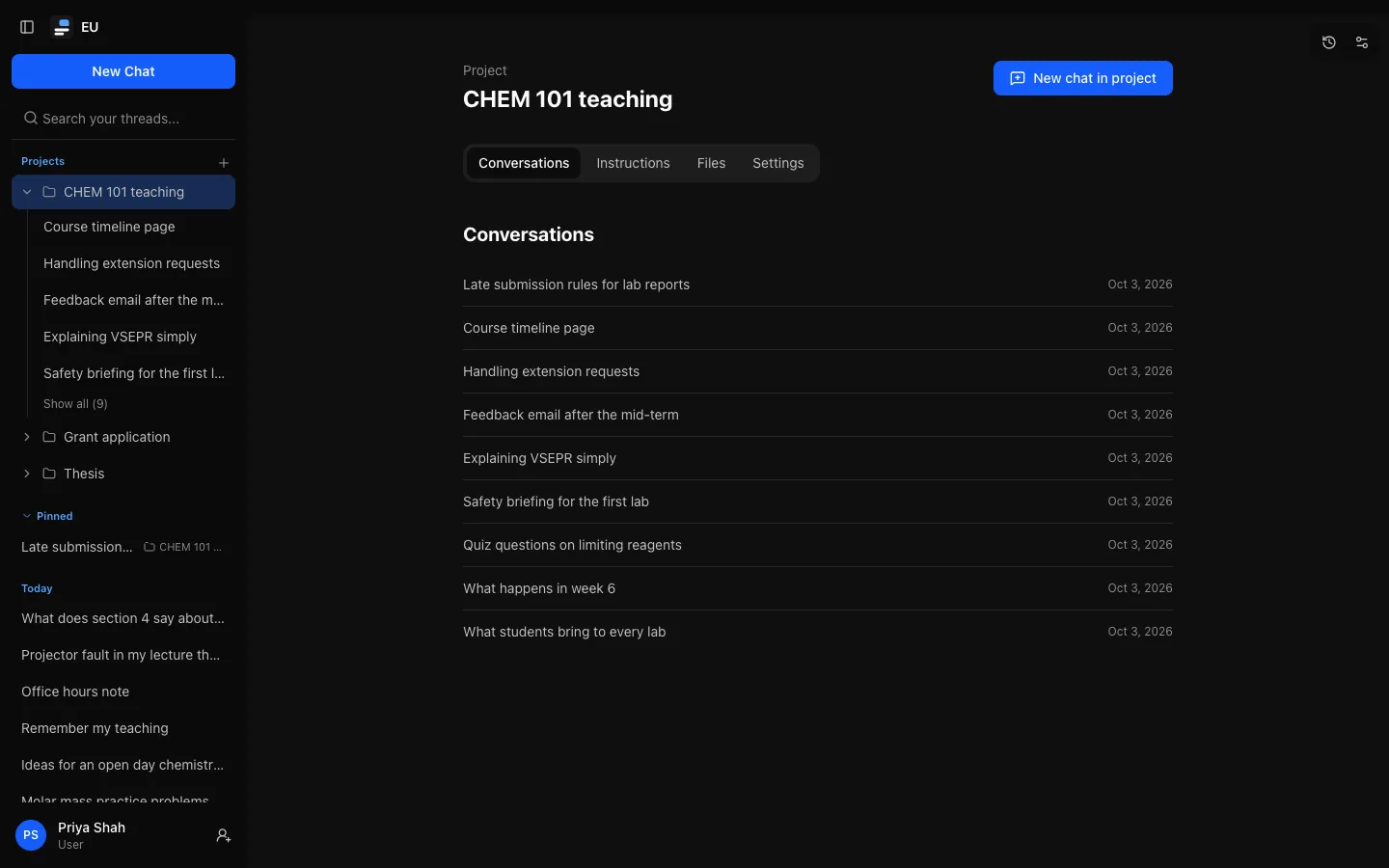
- Conversations: the project's conversations, most recent first.
- Instructions: up to 8,000 characters. Select Save changes after editing.
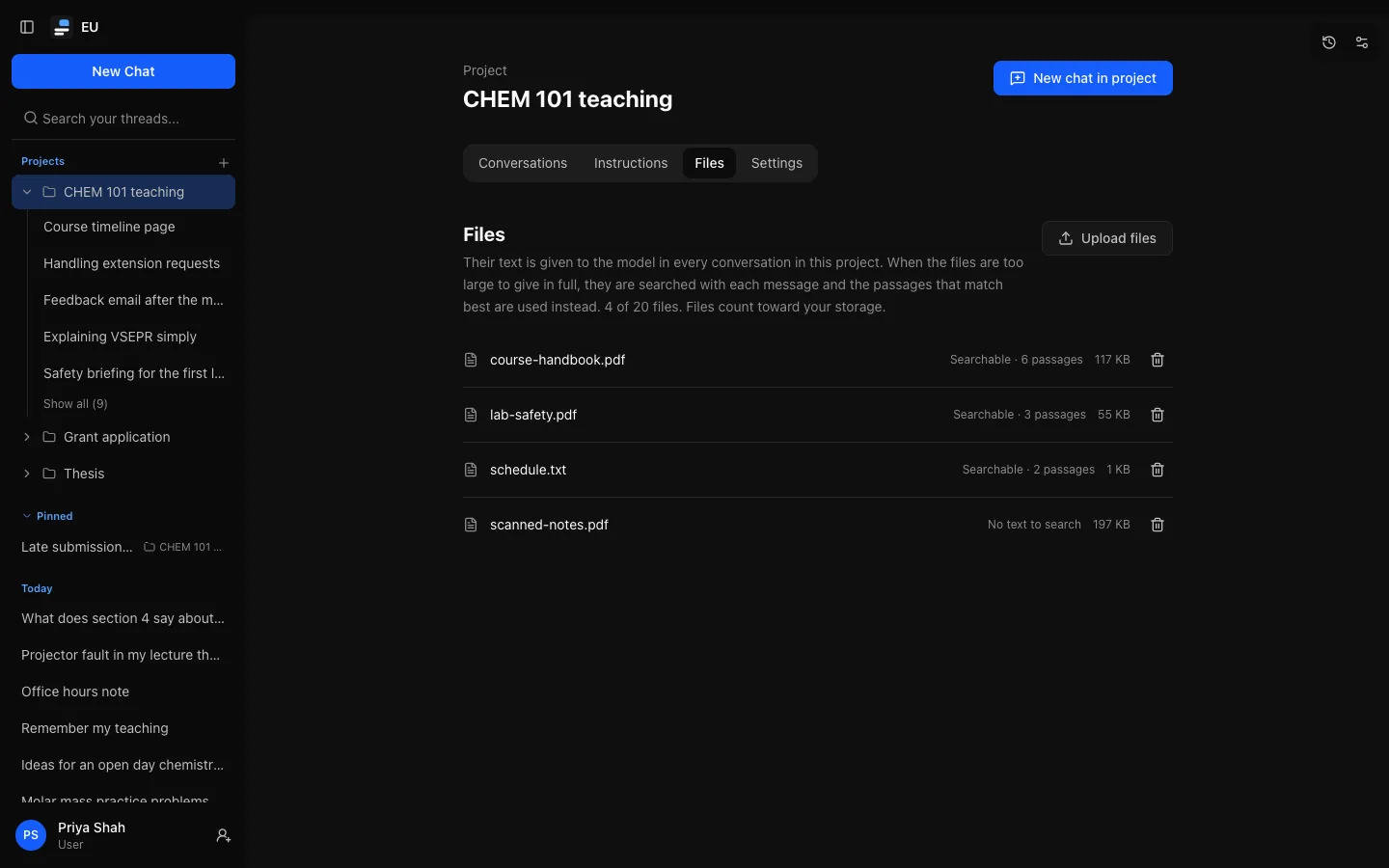
- Files: up to 20 files, checked and stored like attachments. They count towards your storage allowance and need attachments to be available to you. Each shows whether it can be searched:
- Searchable · n passages: its text was split into n passages.
- No text to search: nothing could be read from it, such as an image or a scanned PDF. It is always given to the model whole, as far as it fits.
- Waiting to be indexed: added before an upgrade and not prepared yet. This happens in the background, usually within minutes.
- Settings: rename or delete the project.
Starting and moving conversations
New chat in project opens the new-chat screen, marked "New chat in project name". Temporary chats cannot be in a project.
To move an existing conversation, open it and select Move to project (the folder button at the top right). Choose a project, or No project to take it out. The change applies from the next reply. Forks and edits stay in the same project as the conversation they came from.
What the model receives
With every message in a project conversation, the model receives:
- The project's instructions, after your institution's instructions and your own customization. Your institution's instructions win where they conflict.
- The text of the project's files, read like attachments: text and PDFs as extracted text, images only by models with vision. When all the files fit in what the model can take in, they are given whole.
Large projects
When the files are too large to give the model in full, it gets the passages that matter for your message:
- Keyword search. Passages that contain more of your words, and rarer ones, rank higher. Use the words you expect in the files: names, terms, numbers.
- Only relevant passages. A passage counts when it contains a word specific to part of the files and matches nearly as well as the best one. They are labelled with file name and passage number and take at most half of what the model can take in, so the recent conversation still fits. If nothing is relevant ("write a poem about the sea"), no passages are used.
- Search by meaning, if your institution turned it on: passages that answer your question in other words are found too, and the two rankings are merged so exact names and codes still come first.
- Reranking, if your institution turned it on: a reranking model reads your message with the best matches and puts the ones that actually answer it first, leaving out unrelated ones.
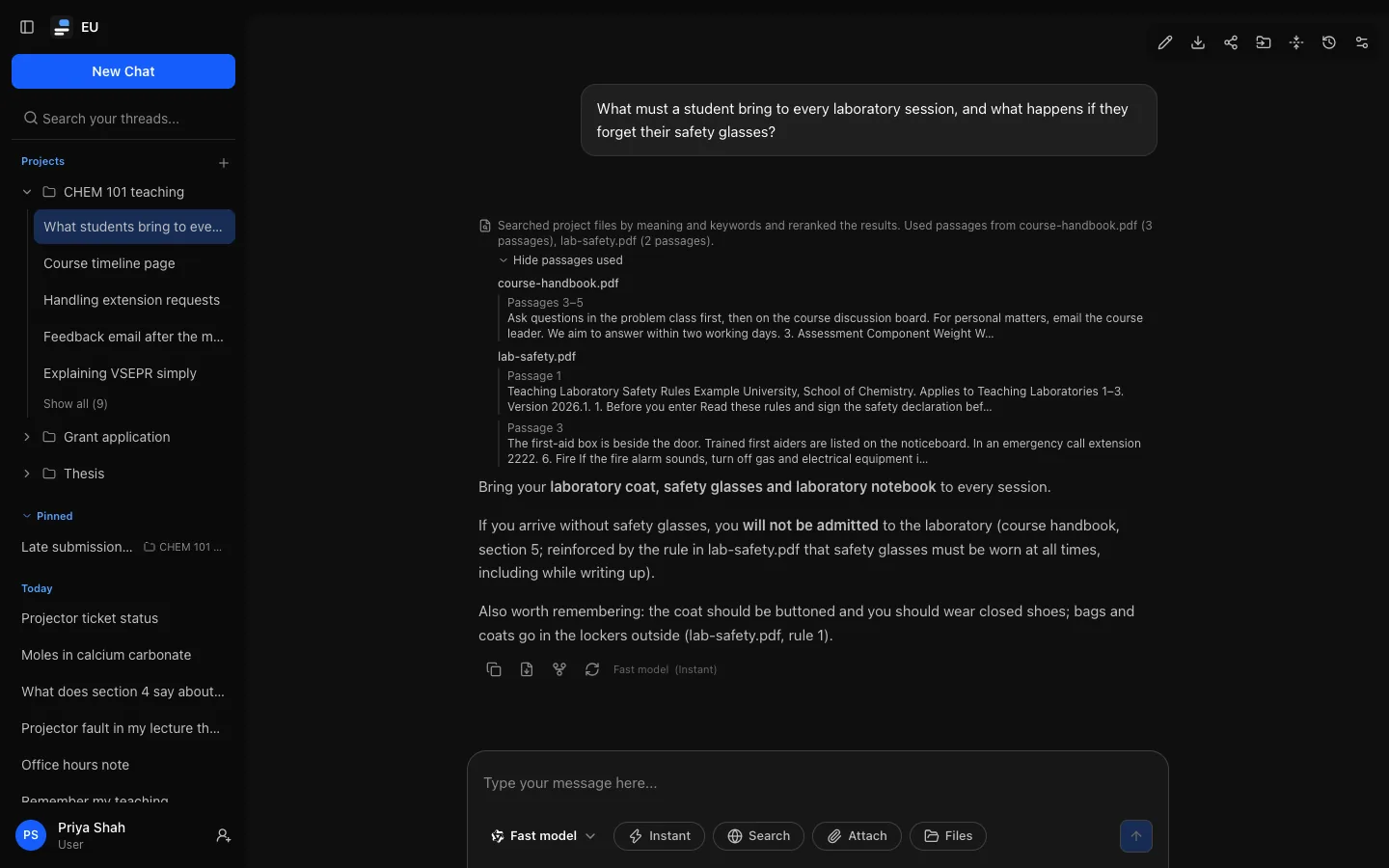
A reply that used searched passages says so above its text, for example "Searched project files by meaning and keywords. Used passages from handbook.pdf (2 passages)".
Which passages a reply used
Select Show passages used under that note to see which passages they were: for each file, the passage numbers, the heading of the section a passage comes from when the file has Markdown-style headings (# Title), and the first 200 or so characters of the passage. Up to 24 passages are listed. Replies from before v0.10 show only the file names and counts.
Keyword search cannot tell what a shared word means, so "plan a trip" can still bring up passages about "data management plans". Ask about specific topics rather than for a summary of everything. Searching by meaning and reranking each count towards your usage, under model names starting with embedding: and rerank:.
Search covers only this project's files, never anyone else's. A file that does not fit is left out rather than cut off, and the reply is marked as having limited context.
Leaving a file out of a question
In a conversation whose project has at least one searchable file, the message box has a Files button (a folder; screen readers call it Project files). It lists the project's files, all ticked. Untick a file to leave it out of your next message: the model gets neither the file nor any passage from it, whether the project is given whole or searched. The reply's note then says so, for example "Left out of this message: draft-2023.pdf."
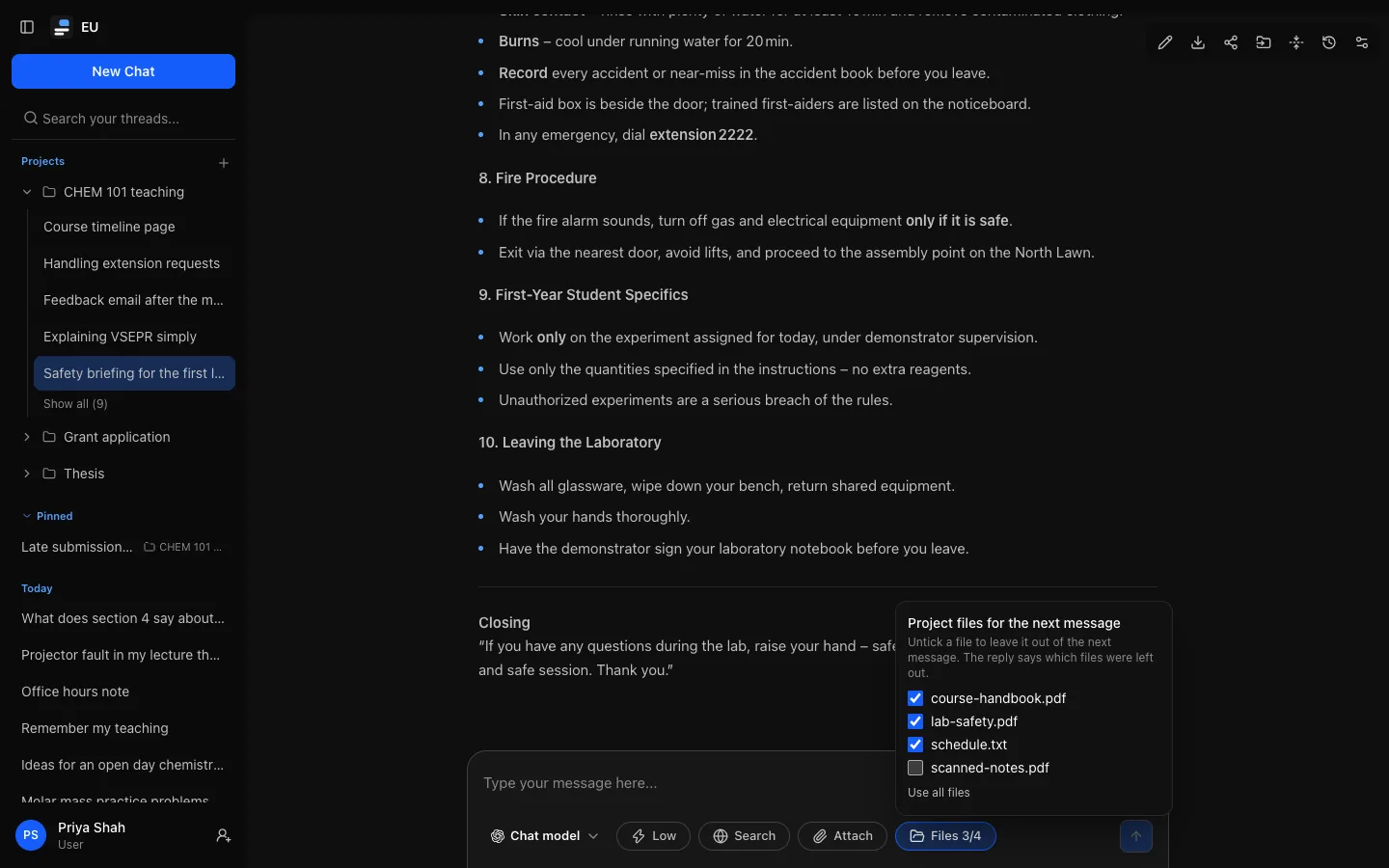
Only that message is affected; the next one uses every file again. While a file is left out, the button shows, say, Files 2/3. The button appears once a conversation has started, so the first message of a new conversation uses every file. Regenerating a reply, or a reply that continues after you approve a tool step, uses every file.
Privacy and sharing
Nothing from the project is written into the conversation. A shared conversation never includes the project's instructions or files, or the note on a searched reply. That note names the files, counts the passages and keeps only the first 200 or so characters of each passage used (at most 24), never the whole passage; it is kept with the reply in your own data export. Like any attachment, a project file's contents go to the provider of the model you chose.
Deleting
- Removing a file deletes it at once, with its passages, and frees its storage. It does not go to the trash.
- Deleting a project keeps its conversations (they leave the project) and deletes its files. This cannot be undone.
While your institution has paused deletion for your account (a legal hold), deleting a project or a project file is refused.
Your institution's retention applies to conversations, not projects: an inactive project conversation can still move to the trash, and restoring it puts it back in the project if the project still exists.
If projects are turned off for your role, your projects are kept but cannot be opened or changed, and their instructions and files stop being used. Turned back on, everything is as you left it. Your full export includes your projects.