Conversations and the sidebar
How the sidebar is organised, pinning, renaming and archiving, the trash, and searching everything you have said.
The sidebar
The sidebar lists your projects, each with its own conversations, then your other conversations under Pinned, Today, Yesterday and Older.
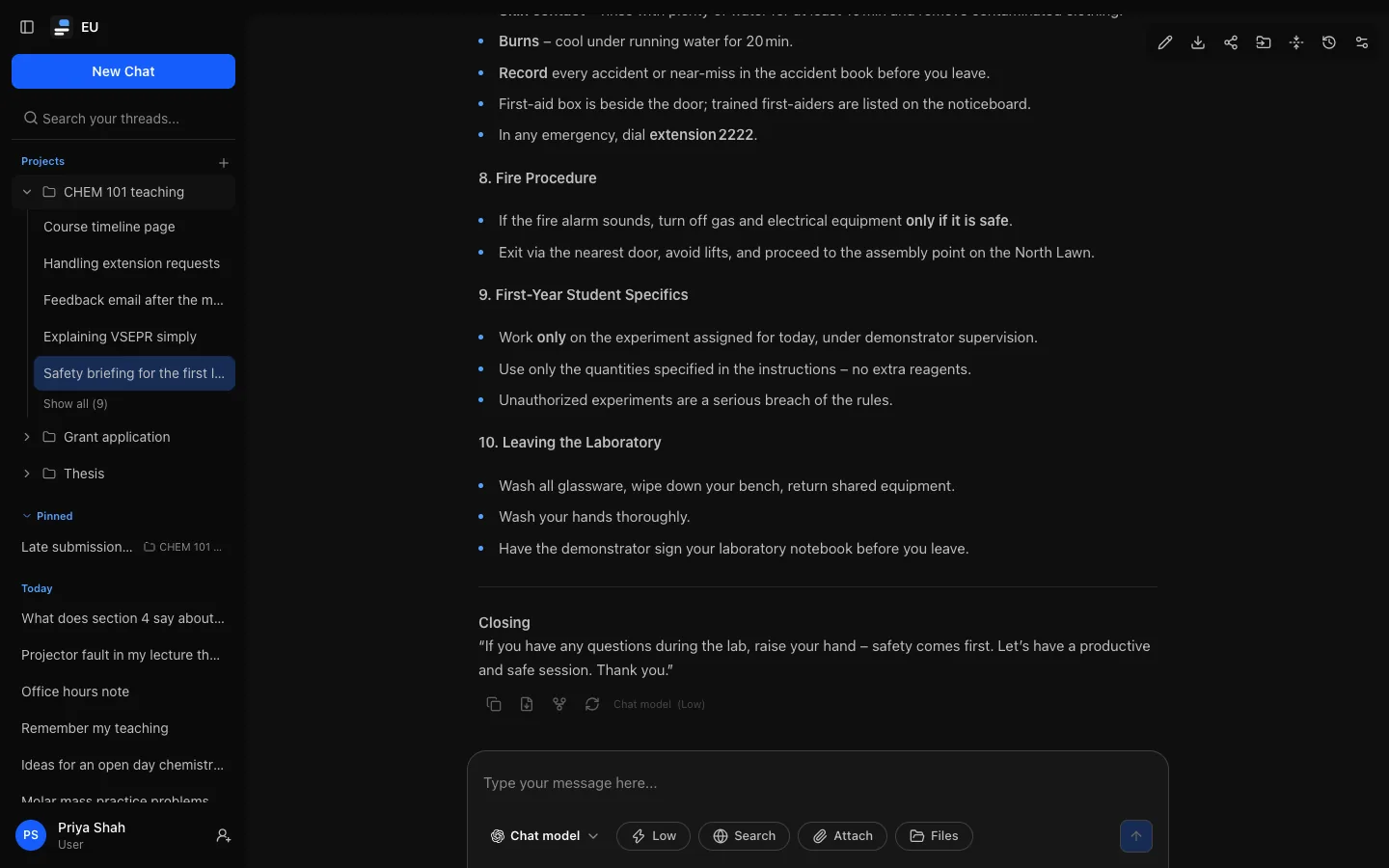
- Under Projects, each project has an arrow that shows or hides its five most recent conversations; select its name to open the project page. Show all (n) opens the project's conversations. Projects start collapsed, and whether each is open is remembered in this browser and kept in step across its open tabs. The project you are working in opens by itself while you are there.
- A conversation in a project is listed under its project, not in the date groups.
- Pinned lists every pinned conversation, including project ones, which show their project's name after the title.
On a phone, open the sidebar from the top left.
Pinning, renaming and archiving
Point at a conversation in the sidebar (or move to it with Tab) to show its buttons:
- Pin keeps it at the top, under Pinned. Unpin puts it back.
- Rename (the pencil): see Renaming a conversation.
- Archive removes it from the sidebar without deleting it. Archived conversations are under Settings → History → Archived, where Restore brings one back. Search still finds them.
Renaming a conversation
A conversation is named automatically from your first message. To change the name, point at it in the sidebar and choose the pencil (Rename thread), or, with the conversation open, choose the pencil at the top right (Rename conversation). Type the new name and press Enter to save, or Escape to leave it as it was.
Names are 1 to 200 characters; spaces at either end are dropped. The new name shows straight away in the sidebar, in search and in Settings → History.
The trash
Delete conversations from Settings → History: tick them and select Delete. They move to the Trash tab, where each shows when it will be deleted for good.
- Restore brings a conversation back (with its files, if you have room for them in your storage allowance). Share links it had stay revoked.
- Delete now deletes one permanently; Empty trash deletes them all. This cannot be undone.
How long the trash keeps things, and whether old conversations are moved there automatically, is set by your institution. A conversation removed for inactivity is marked "removed automatically".
Finding a conversation
Type in the sidebar's search box, or press Cmd/Ctrl + K, to search your conversations. Results show each conversation's title with its best-matching lines underneath, matched words highlighted, best match first.
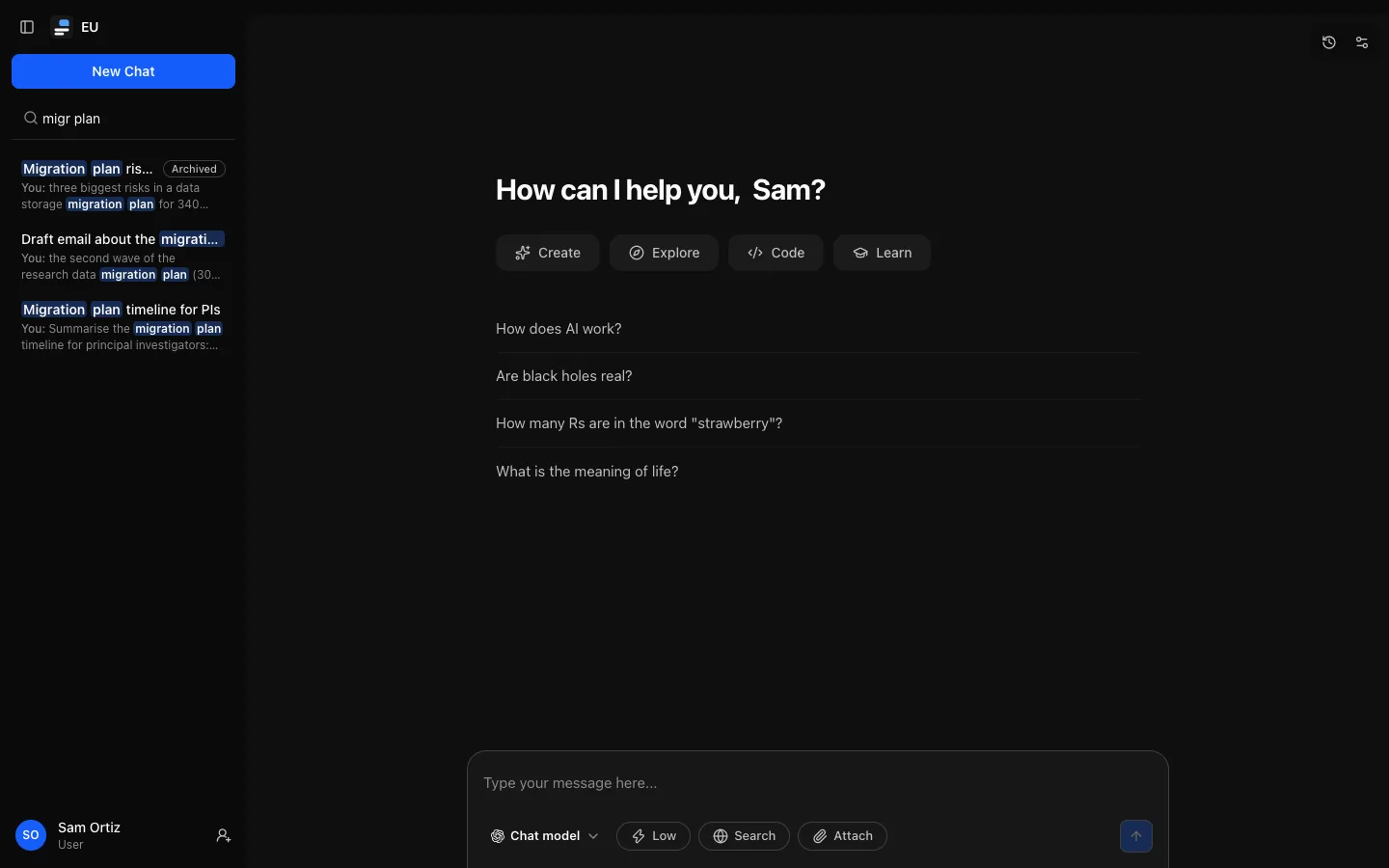
- Every word you type must appear, and each matches the start of a word:
migr planfinds "migration planning". Punctuation is ignored. - Search covers titles, your messages and the replies you were shown. It does not search reasoning, web sources or the contents of attached files.
- Archived conversations are included and marked Archived; project conversations show their project. Conversations in the trash and temporary chats are not included.
- Choosing a result opens the conversation at the matching message, briefly highlighted, instead of at the end. Jump to latest takes you to the end.
Cmd/Ctrl + K also opens commands: a new chat, your history, models, attachments, settings, switching theme, and (for administrators and auditors) every admin page.
Downloading one conversation
The download button at the top right of a conversation saves it as Markdown. To save everything at once, see Your data.
Temporary chats
A temporary chat stays out of the sidebar and search, and expires. See Chatting.