Settings
Your account, password and devices, customization, history, memory, your default model, your shared links, connectors and attachments.
Open Settings from the menu under your name at the bottom of the sidebar. The sections are tabs across the top: Account, Customization, Memory, History, Models, Sharing, Connectors and Attachments. Where they do not fit on one row, for example on a phone, a Settings section menu takes their place.
Memory is hidden when memory is not available to you and you have no notes, Sharing when you may not share and have no link left to revoke, and Connectors when there is nothing for your role to connect. Their addresses still open if you follow a link to one.
Every settings page also shows your usage limits, a Keyboard Shortcuts card and a Need help? card: beside the page on a wide screen, below it on a narrow one. The card shows ⌘ on a Mac and Ctrl elsewhere, and its send and new-line keys follow Invert Send/New Line Behavior; every shortcut it lists works (Keyboard shortcuts). For help with your account, contact whoever runs your instance.
Account
Your name, email address, role, and how you sign in.
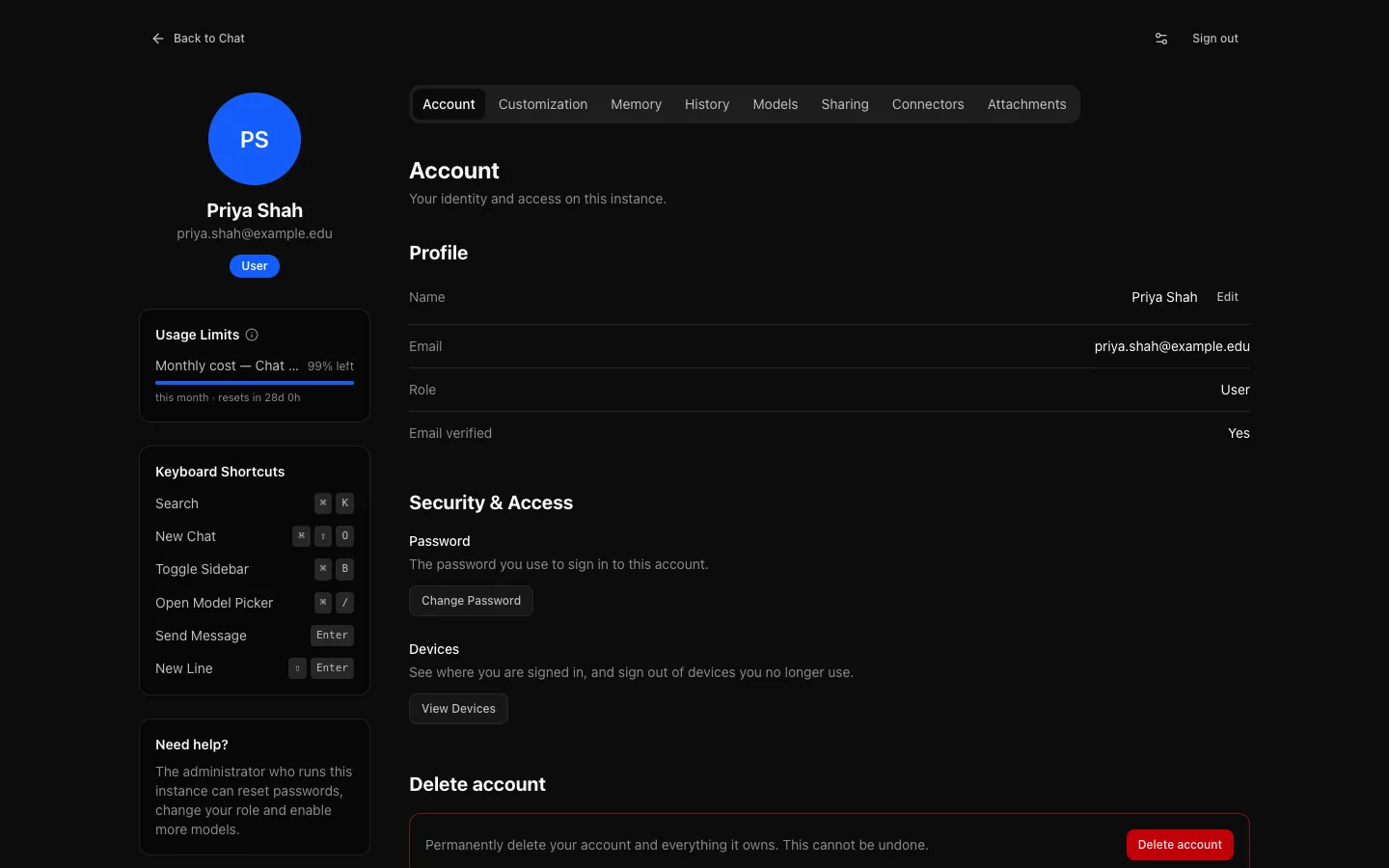
- Name. If you sign in with an email and password, Edit changes the name shown here (1 to 100 characters). If you sign in through your organisation, your name and email come from there and are marked as such.
- Password. Change password asks for your current password and a new one of at least 12 characters. Sign out of all other devices is ticked by default, so a change made after losing a device locks it out; you stay signed in where you made the change. If you sign in through your organisation, your password is managed there. If your institution has turned off email and password sign-in, the page says so.
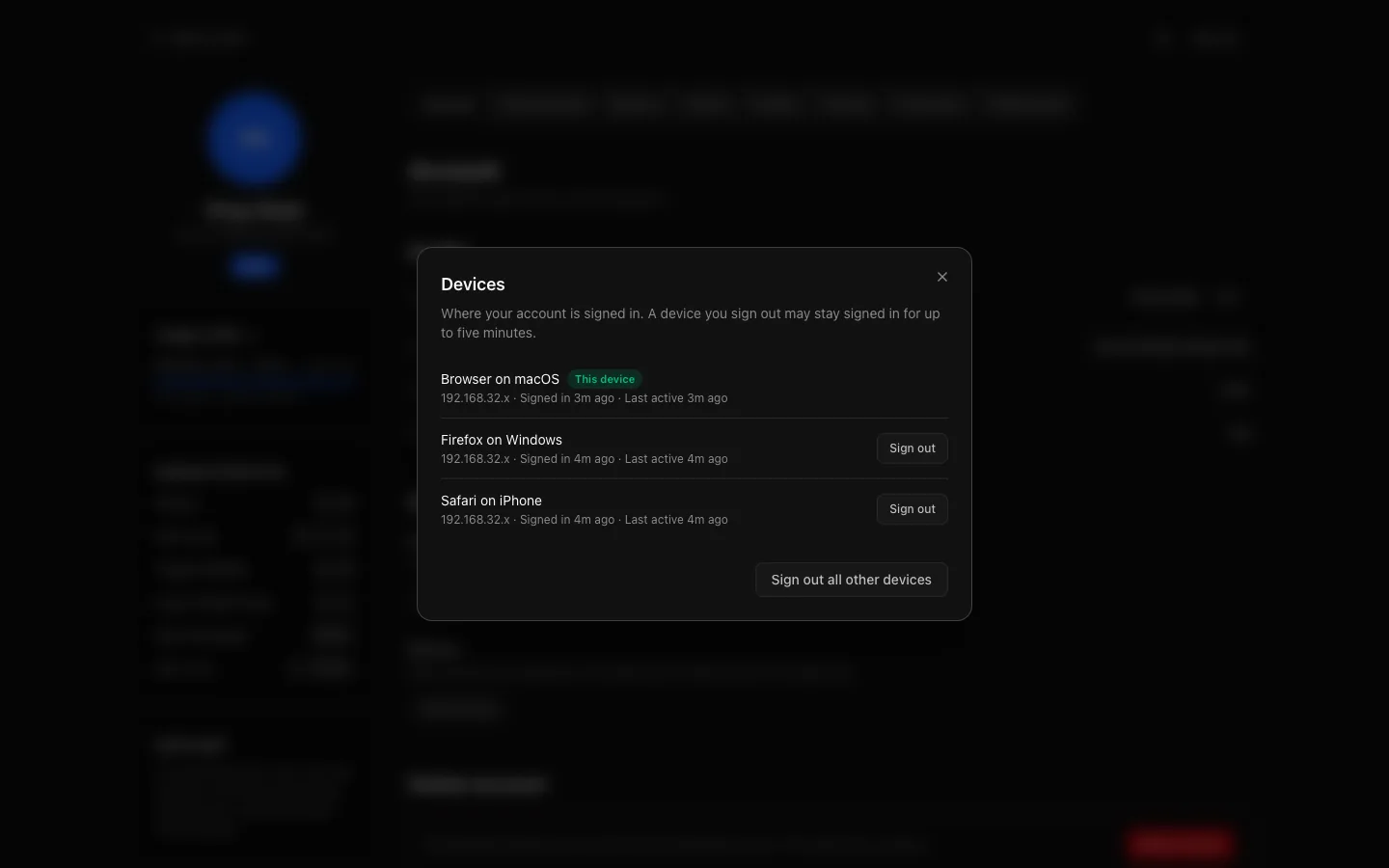
- Devices. View Devices lists where your account is signed in: the browser and system, a shortened network address, when each signed in and when it was last active. Your current device is marked This device. Sign out ends one other session; Sign out all other devices ends every session but this one. A device you sign out can stay signed in for up to five minutes.
You cannot change your email address yourself.
Deleting your account
If your administrator allows it for your role, Delete account at the bottom of the page deletes your account and everything it owns: conversations and their messages, uploaded files, projects, artifacts, memory, share links, connected accounts, saved views, limit overrides and preferences. You are signed out straight away, and it cannot be undone. Export anything you want to keep first (Your data).
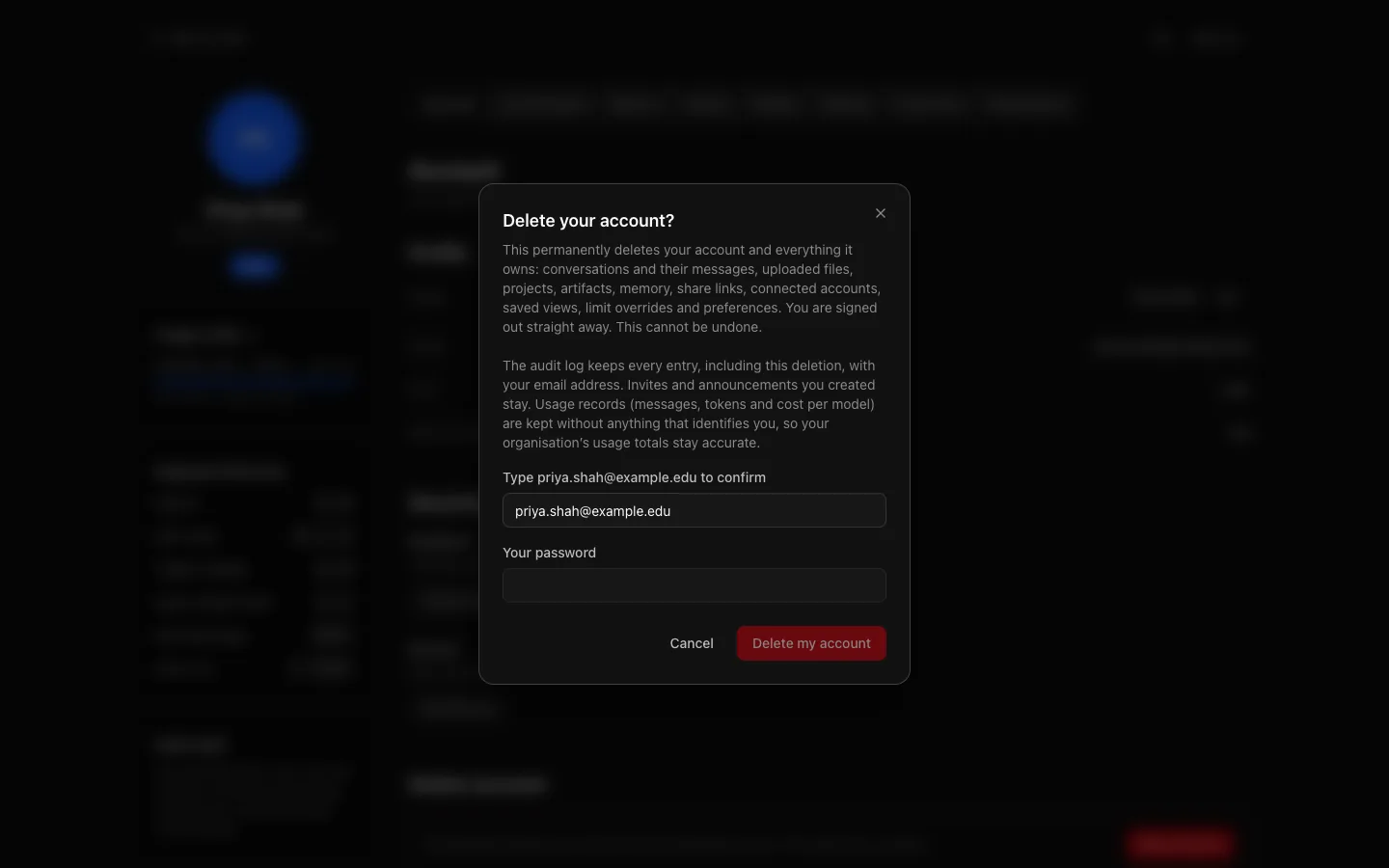
To confirm, type your email address and, if you sign in with a password, enter it, then select Delete my account. If you sign in through your organisation, there is no password to enter, and the dialog warns that signing in that way again later creates a new, empty account.
What stays:
- The audit log keeps its entries, including one for the deletion, with your email address. Invitations and announcements you created stay too.
- Usage records (how many messages and tokens you used with each model, and what they cost) are kept without anything that identifies you, so your institution's usage totals stay accurate.
The deletion is refused, with the reason, while your institution has paused deletion for your account (a legal hold), if you are the last administrator, and in a session an administrator opened as you. Without the option, the page says To delete your account, contact your administrator; an administrator can delete it under People.
Customization
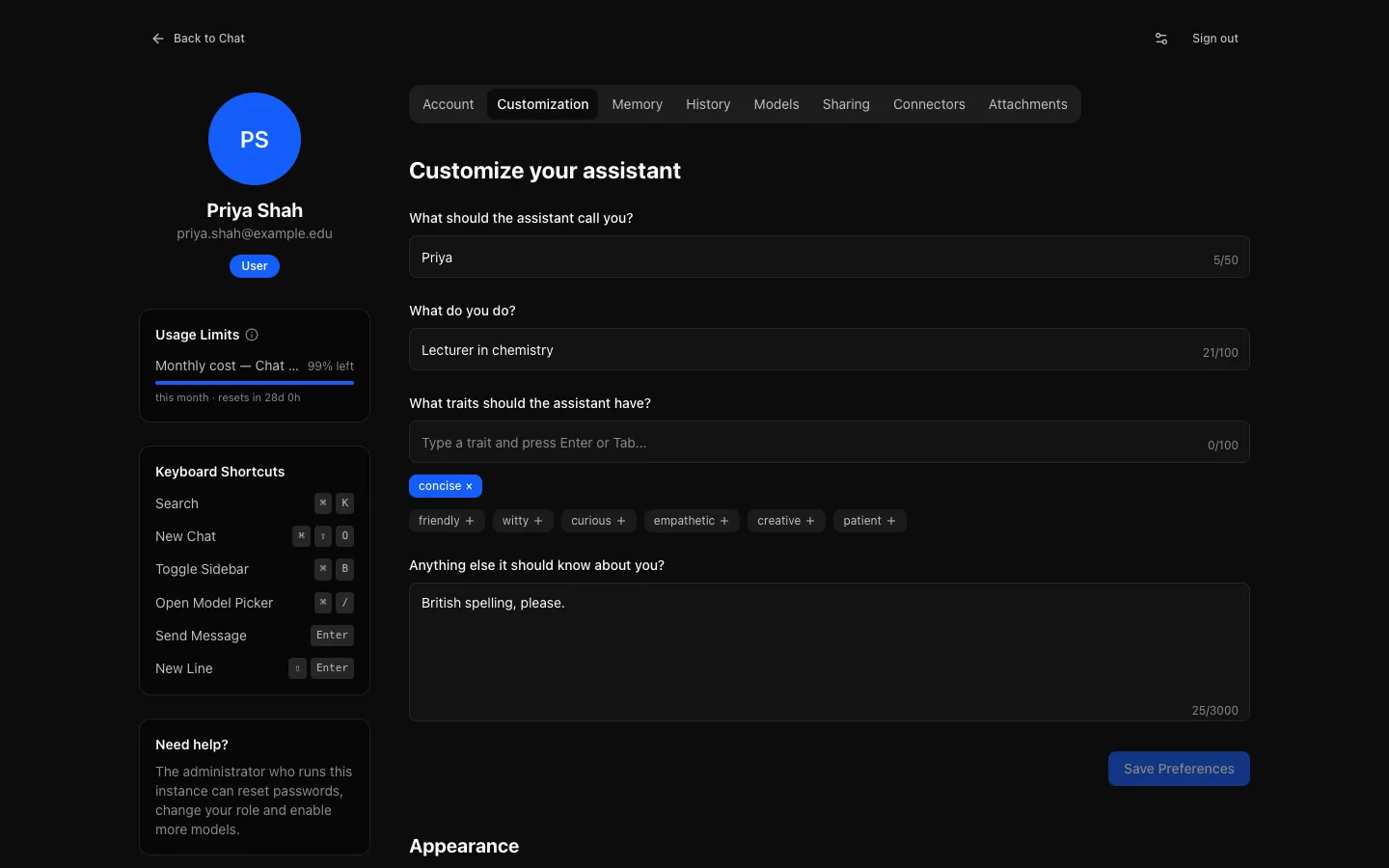
What you set at the top is sent with every message, so it changes replies without you repeating yourself:
- What to call you: used when a reply addresses you.
- What you do: "Research administrator" gets different examples from "undergraduate".
- Traits: how replies should read. "Concise" is the one most people want and few ask for.
- Anything else: free text, such as "answer in bullet points" or "British spelling".
Three precise sentences beat a paragraph of generalities. Save Preferences becomes available once you change something.
Further down are choices about the interface, kept in this browser:
- Appearance: Light, Dark or System. The same menu is at the top right of a conversation.
- Invert Send/New Line Behavior: normally Enter sends and Shift+Enter starts a new line. With this on, Enter starts a new line and
Cmd/Ctrl + Entersends. - Wrap Long Code Lines: wraps code instead of scrolling it sideways.
- Open artifacts automatically (on by default): opens the artifact panel beside the conversation when a reply starts writing one, on wide screens.
History
Your conversations under Active, Archived and Trash, newest activity first.
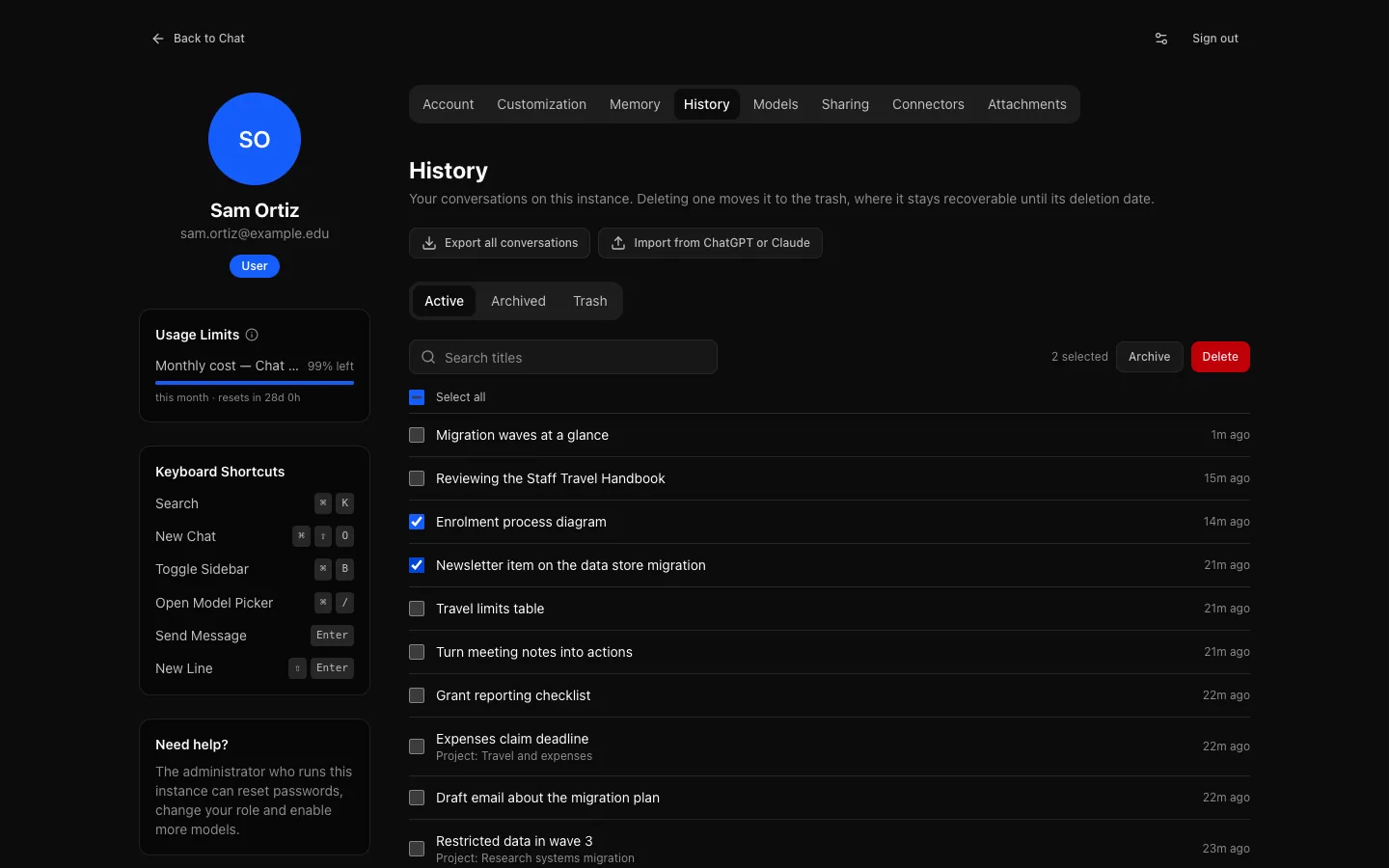
- Each title opens its conversation; a conversation in a project shows the project's name.
- Search titles narrows the list by title. To search what was said, use the sidebar's search.
- The list shows 50 conversations at a time; Load more adds the next 50.
- Tick conversations, or Select all, then Archive or Delete them. Deleting moves them to the trash. In Archived, Restore brings one back to the sidebar; in Trash, see The trash.
At the top, Export all conversations and Import from ChatGPT or Claude handle all your data at once. See Your data.
Memory
Your own switch for memory, and every note OCI keeps about you. See Memory.
Models
Defaults sets where new conversations start, on every device you use:
- Default model: one of the models your role may use, or Instance default to follow the model your administrator chose.
- Default reasoning level: one of the levels your role may use that the default model offers, or Instance default. On a model with other levels, the message box uses the nearest one it has.
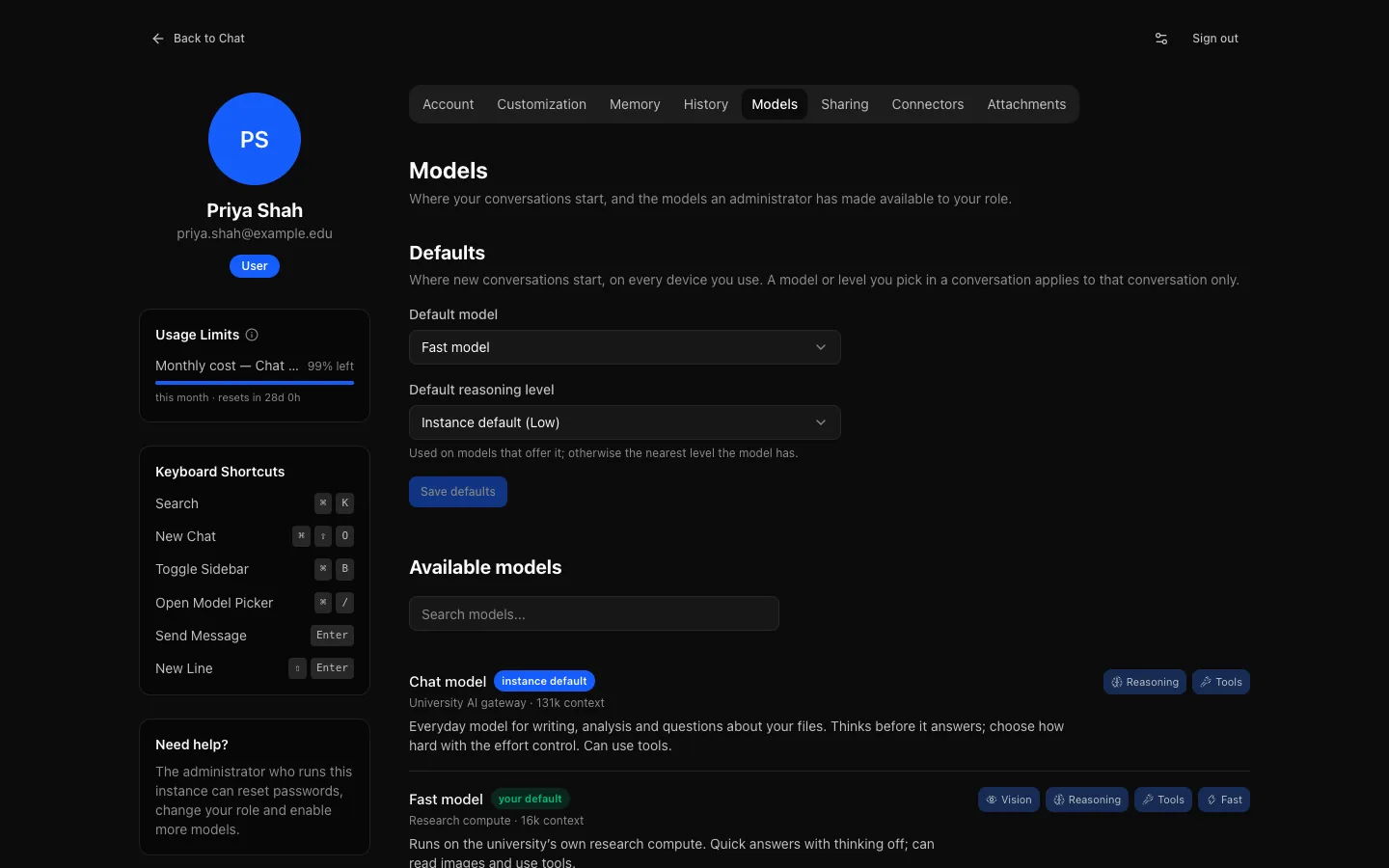
Save defaults stores them with your account, not in the browser. A conversation starts from the model and level you picked in it, or last used in it; a new one starts from your defaults, then the instance's. Picking a different model or level in a conversation changes that conversation only.
If your administrator later hides your default model or withdraws your level, new conversations quietly start from the instance default instead, and this page says so until you choose again.
Below, Available models lists the models you can use and what each can do, with room to read the descriptions, marking the instance default and your default. You cannot add models here; your institution decides which appear.
Sharing
Every public link you have made to a conversation, newest first, 50 at a time (Show more adds the next 50). Each shows the conversation (a link to it), whether the link is Live or a Snapshot, whether it is Active, Expired or Revoked, when it was created and when it expires, and how many times it has been viewed. A conversation in the trash, or a temporary chat that has expired, is marked as such.
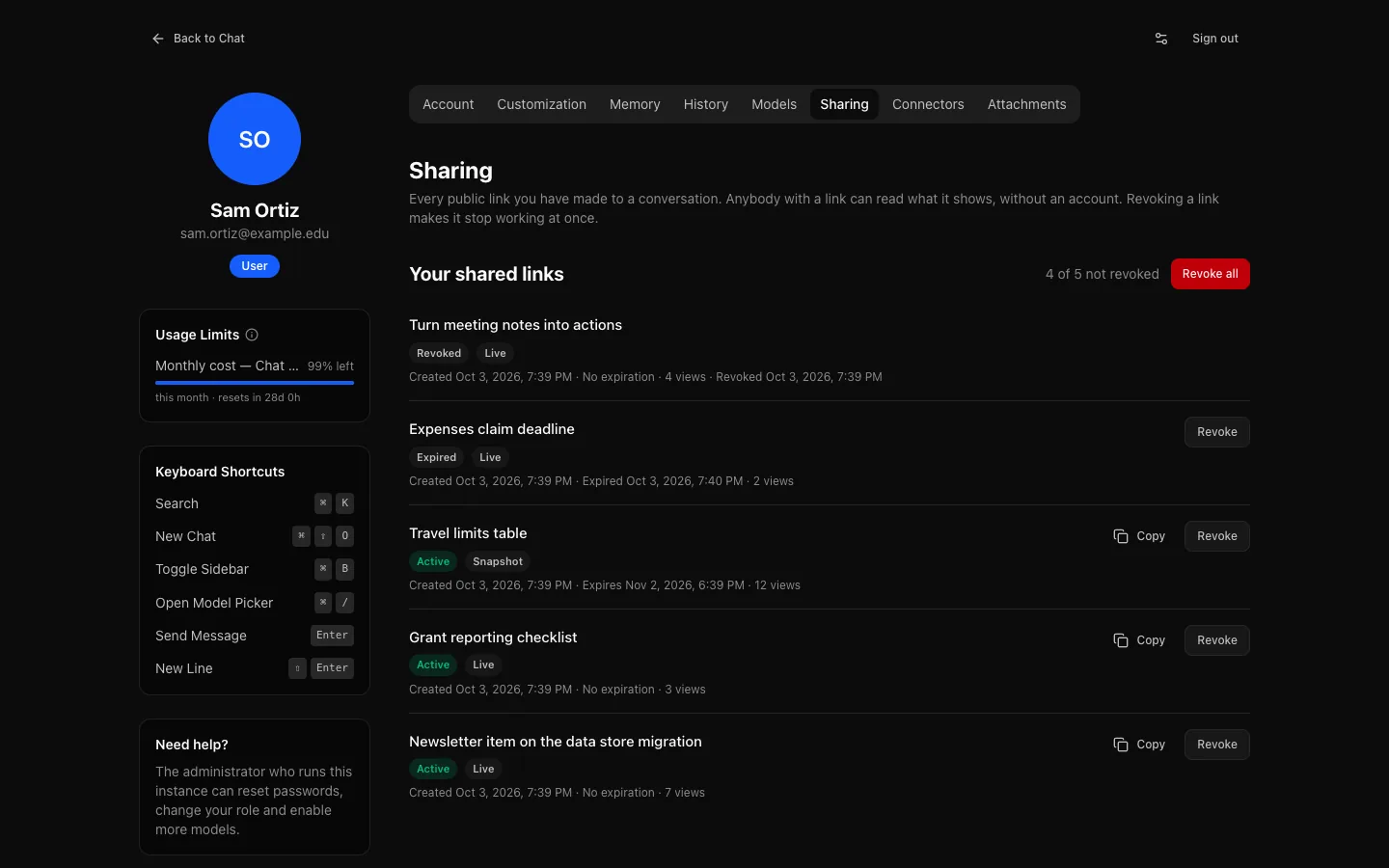
Copy copies an active link. Revoke takes one link down and Revoke all takes down every link not yet revoked, expired ones included; each asks you to confirm first. Both work even when your institution has turned sharing off for you, so you can always withdraw links you made before. See Sharing.
Connectors
Services that need your own sign-in before models can use their tools, with Connect and Disconnect. See Tools and connectors.
Attachments
Everything you have uploaded, in chats and to projects, and how much space it takes. Storage used shows the total against any limit for your role, split into chat files, project files and artifacts.
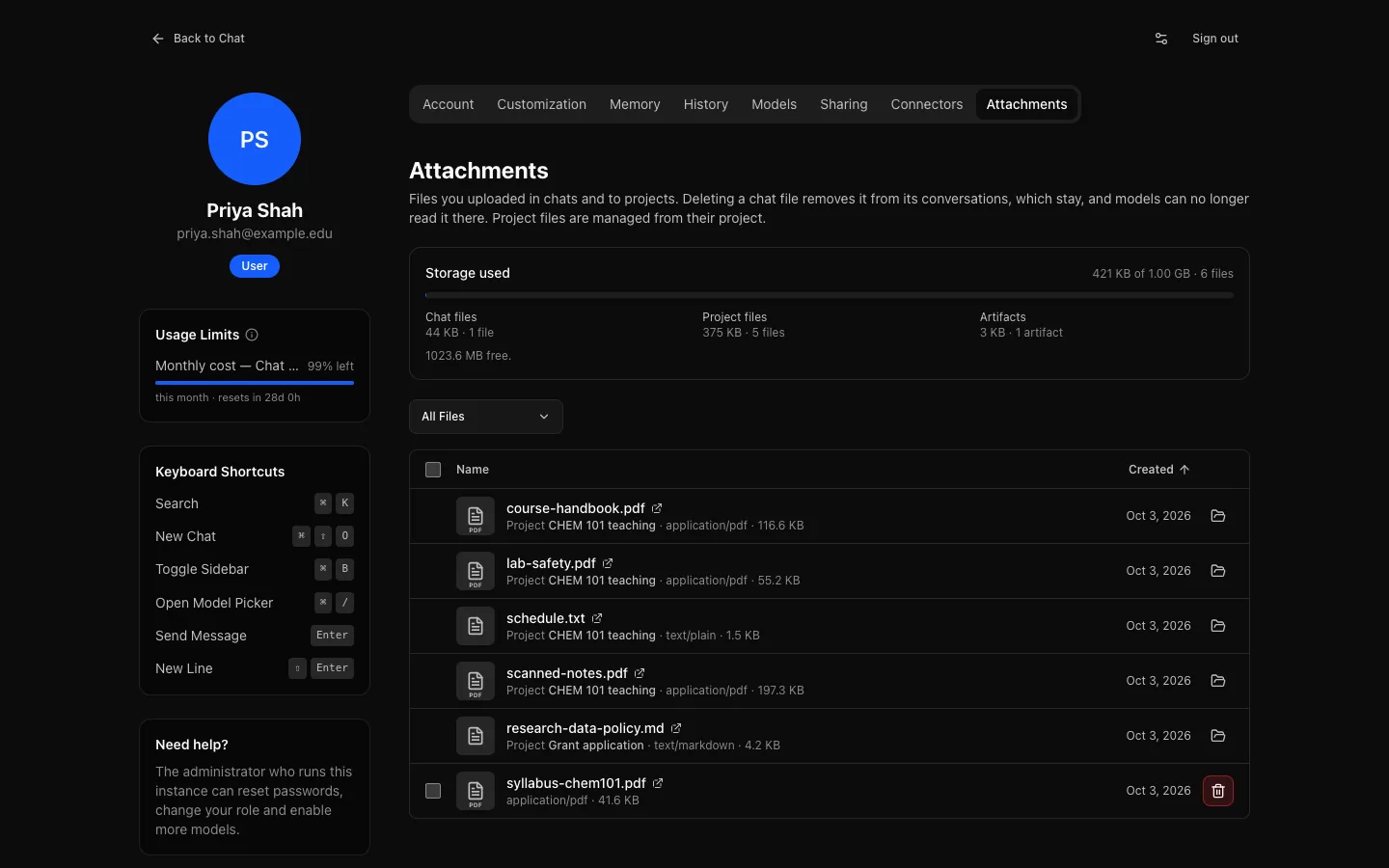
Deleting chat files frees space. A deleted file disappears from its conversations, which stay, and models can no longer read it there. Project files show their project; delete them from the project.