Attachments and web search
Sending images, PDFs and text files to a model, and letting a model search the web before it answers.
Attachments
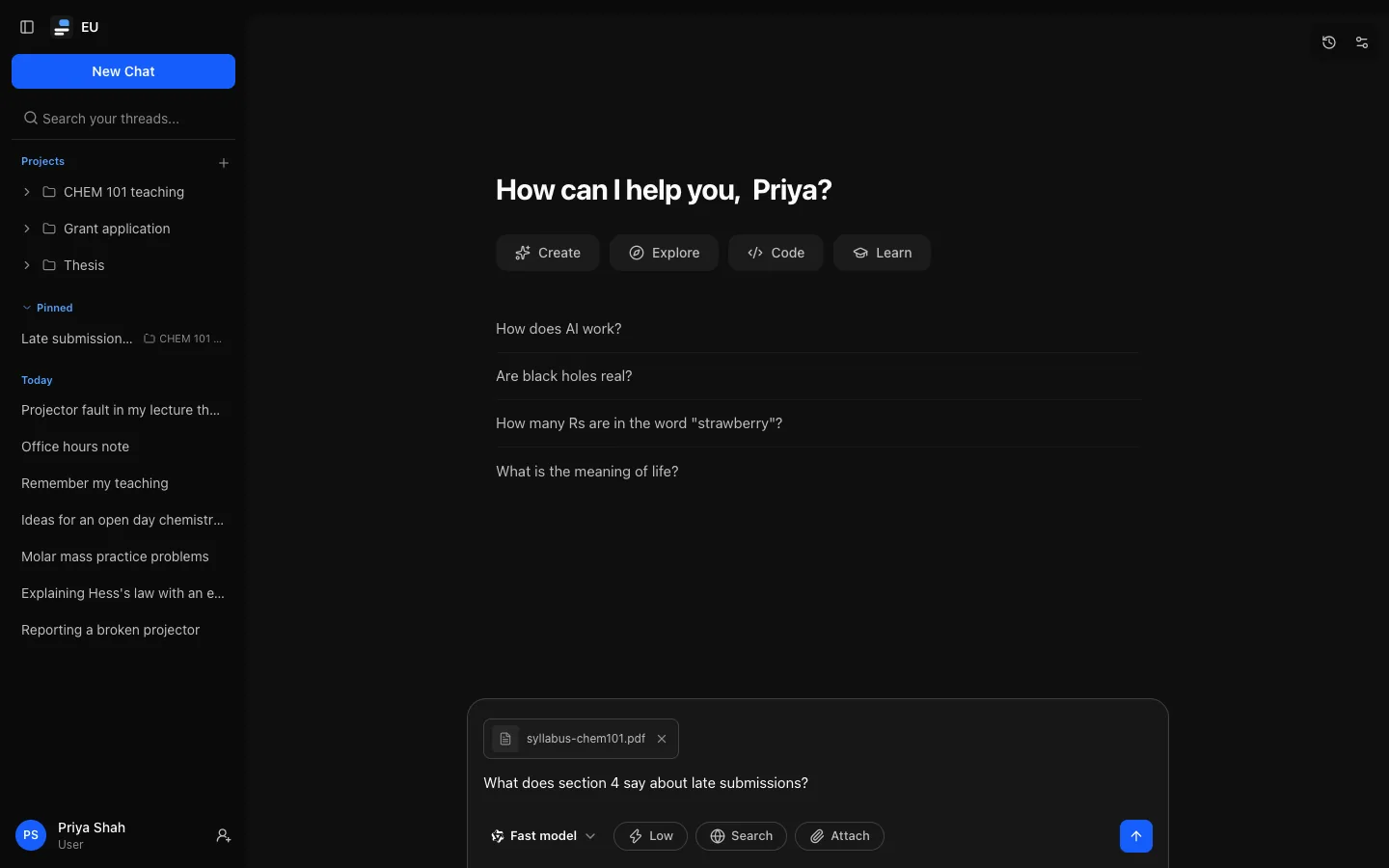
Attach a file with Attach beside the message box, or drag it onto the page. A chip appears above the message box while it uploads.
What you can send
By default an instance accepts PNG, JPEG, WebP and GIF images, PDFs and plain text, up to 20 MB each and ten files per message. Your administrator can change all of that.
Files are checked by their contents, not their name: renaming a file to .png does not get it accepted, and a real PNG with the wrong extension is.
The model has to be able to read it
- Images need a model with vision. Other models are told the file could not be read, not shown the image.
- PDFs and text files are sent as extracted text, whichever model you use. Page layout, diagrams and scanned pages may not come through. If nothing can be extracted, the model is told the file could not be read.
Be specific with long documents. "What does section 4 say about data retention?" gets a better answer than "summarise this".
Where files go
Uploads are stored by your instance. When you send a message with an attachment, the file's contents go to the provider of the model you chose, like the text of your message. Follow-ups, retries and switching models can send earlier attachments again, possibly to a different provider. Deleting a file cannot recall what was already sent. Ask your institution which providers suit your data.
Forks refer to the original file rather than copying it. Attachments count towards your storage allowance; manage them in Settings → Attachments.
Web search
A model knows what it was trained on, up to a cut-off date. Turning on Search lets it look things up before answering.
Turning it on
Search sits beside the model name in the message box. It applies to the message you are about to send, so you can use it for one question and not the next. If it is missing, web search is off for the instance or your role, or not fully set up.
What you get back
How the search runs depends on the model:
- A model that can call tools gets a web search tool. It decides whether to search, what to search for, and may search several times. The searches sit in the reply's work block, summarised as for example Searched the web twice (see How a reply shows the model's work); expanded, each search is a step such as "Searched the web for 'library opening hours' · 5 results"; select it to see the query and results.
- Any other model gets one search run before it starts writing, using your message as the query. The panel above the reply shows the query and the results the model was given.
Either way the model is asked to link the sources it relies on, and the sources are listed above the reply. Open the steps or the panel when the answer matters, to judge whether the searches and sources were good ones.
If a search fails, for example because the search provider rejected your institution's key, you still get an answer: the reply shows Web search failed with the reason, and the model is told to say that current sources could not be checked. A search that times out, cannot reach the provider or meets a server error is tried once more first. If your institution has set up a second, fallback provider, the search then goes to it, and the reply's search details name the provider that answered. A rejected key or a rate limit is reported straight away, since trying again would not help. A search gives up within about 25 seconds.
When it helps
Worth turning on for anything recent or dated, or anything you would otherwise check yourself. Not worth it for reasoning problems, writing and editing, or questions about a file you attached.
Following a link
Links in an answer point outside your institution. Following one asks for confirmation first and shows where it goes.